
Lightspeed R & C Series
Integrate your Lightspeed Retail (R-Series) and eCom (C-Series) store with MyRegistry.com
MyRegistry enables gift registry functionality by connecting directly with your Lightspeed R & C account allowing to integrate powerful features for a seamless universal gift registry experience
You'll complete setup across two platforms:
- Lightspeed R & C Series
- MyRegistry Partner Dashboard
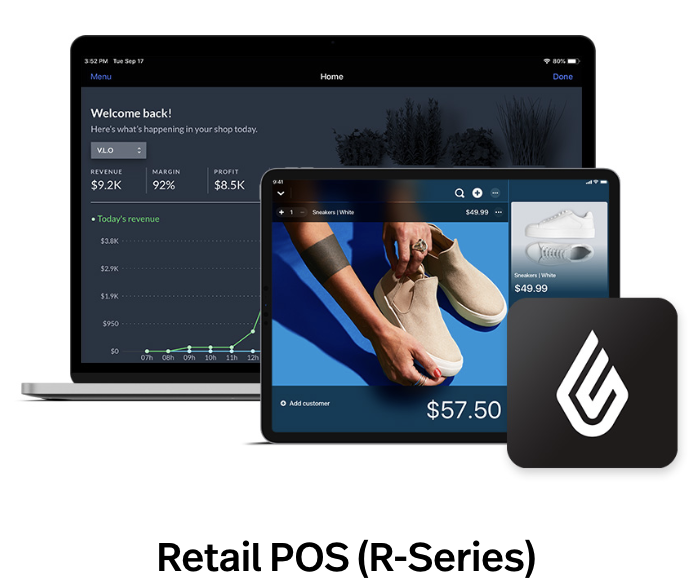
Handles in-store inventory and transactions
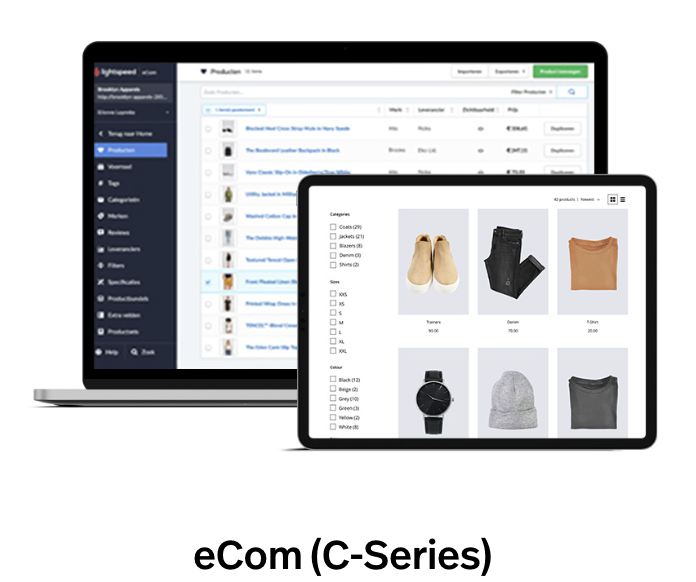
Ecommerce platform for your online storefront
⚙️ Feature Installations
Setup is done entirely via Lightspeed and MyRegistry Partner Dashboard - no direct code editing is required
 Before starting, ensure the following Prerequisites are in place:
 Lightspeed Admin Access (Retail & eCom)
 Access to the MyRegistry Partner Dashboard
 SiteKey from your Partner Dashboard
 Product Variants and SKUs are properly configured
 Important: Skipping these steps may result in improper widget setup or missing product sync
Ecommerce Features
Add scripts to your C Series (eCom) site to enable core MyRegistry features.
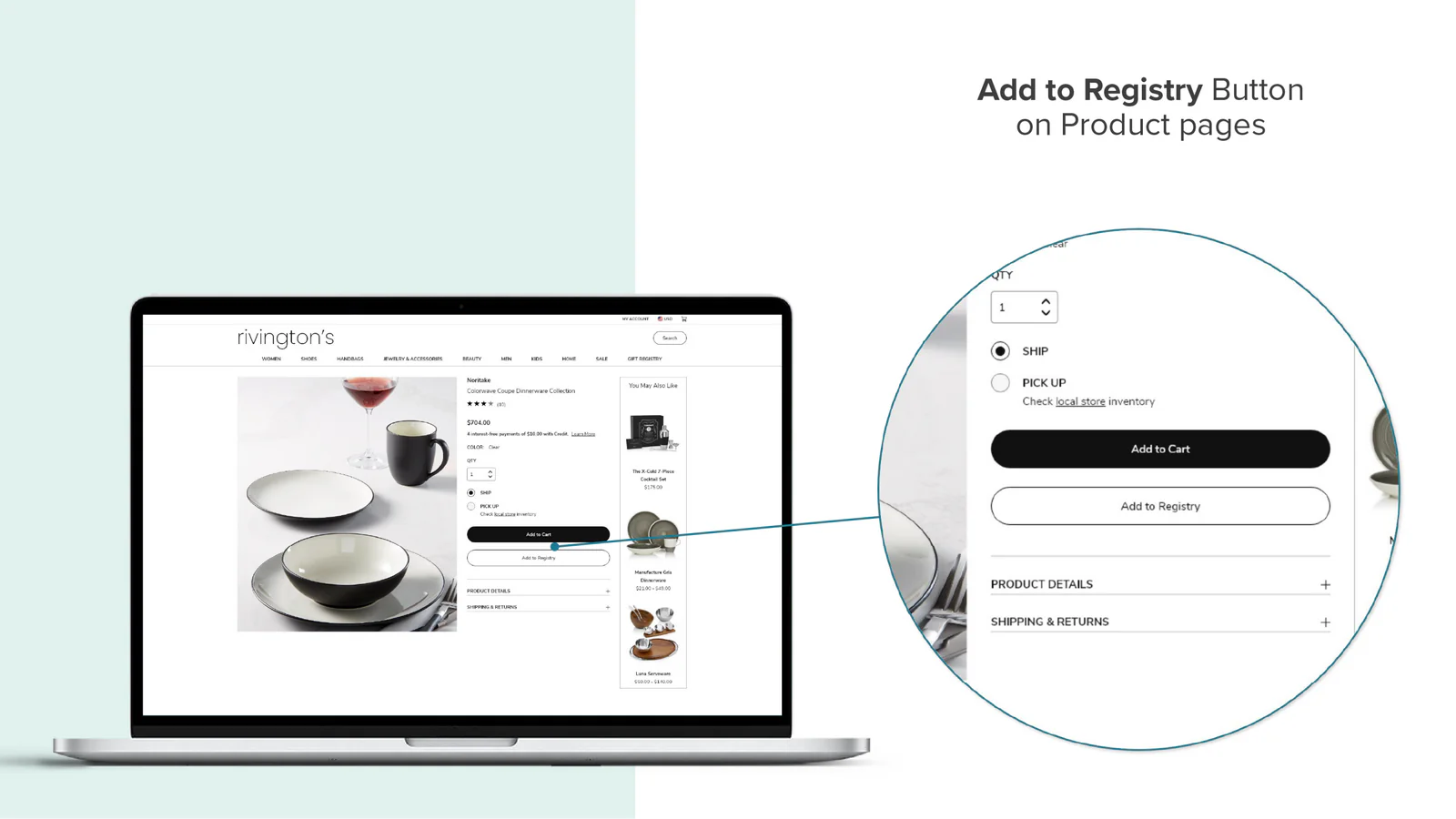
Add any product directly to MyRegistry gift list
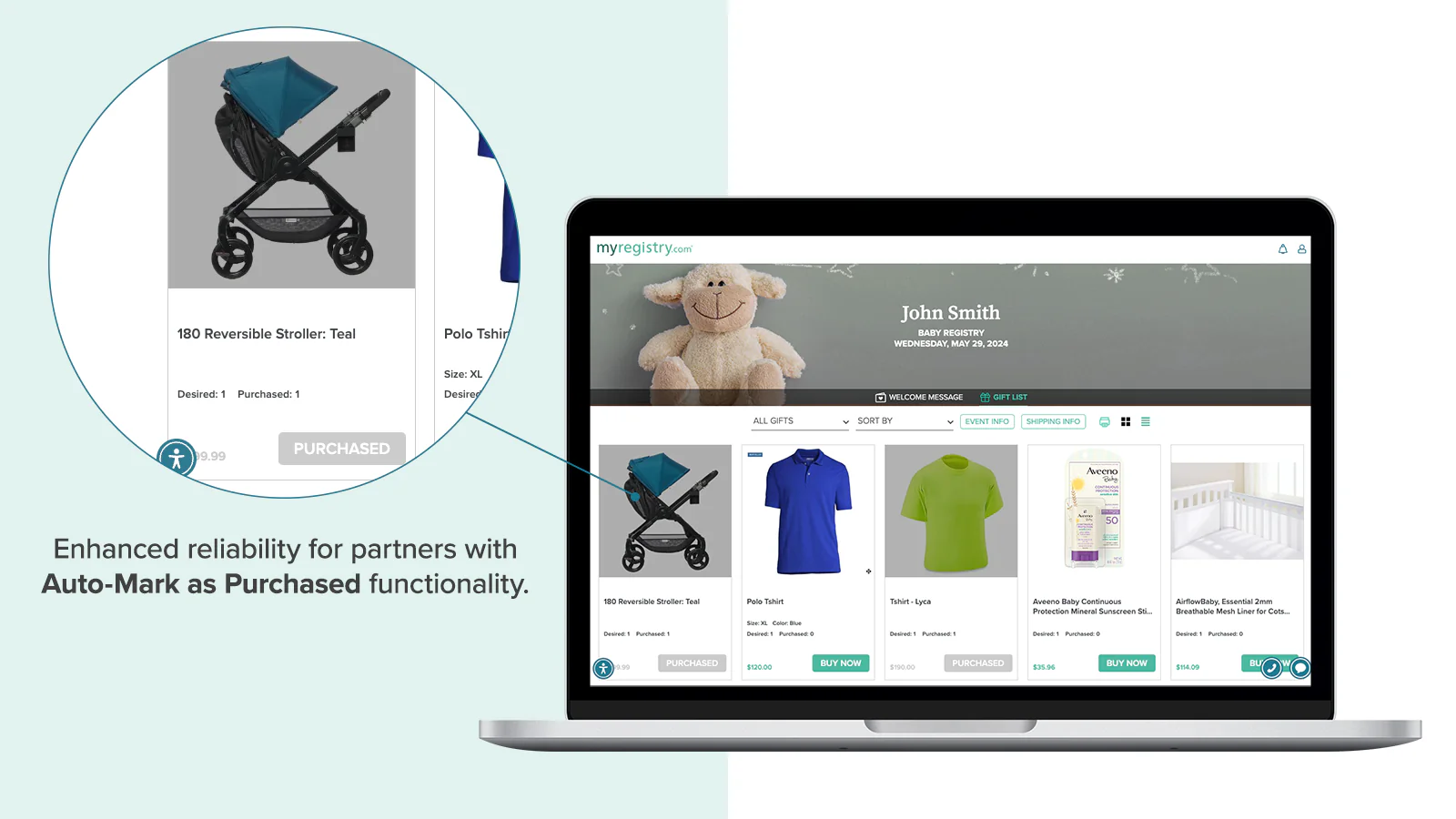
Automatically marks items as purchased on gift lists
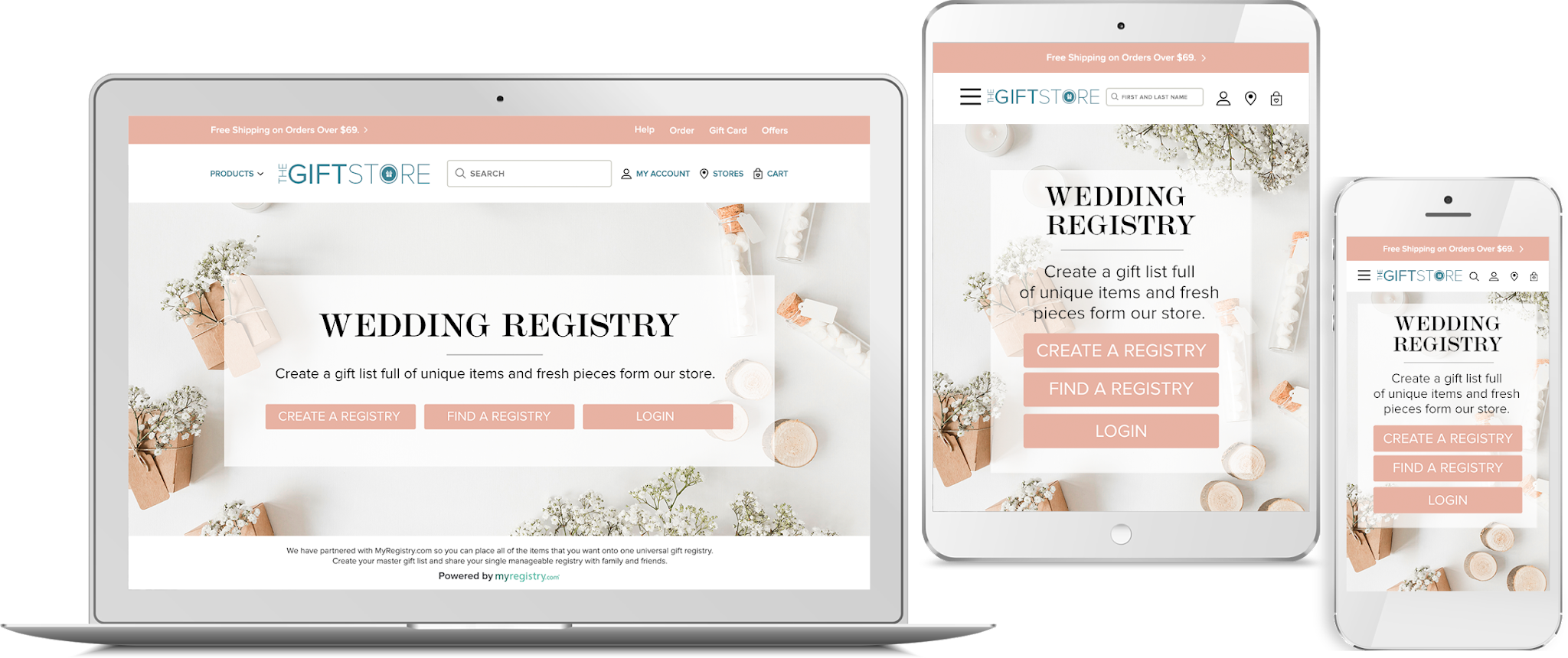
Display a branded registry page within your C Series store
🚨 Before you begin please make sure you have received your sitekey from MyRegistry.com
Add MyRegistry scripts to Lightspeed C Series
Install the MyRegistry scripts to enable Add to Registry and Order Confirmation functionality
Add to Registry Button
-
Visit https://services.shoplightspeed.com/login and Log into Lightspeed C Admin
-
Navigate to:
Settings>Web Extras -
In the
Custom JSsection, paste the following:
<script type='text/javascript'>
  var as = document.createElement('script');
  as.type = 'text/javascript';
  as.async = true;
  as.src = 'https://www.myregistry.com/ScriptPlatform/Lightspeed/AddToMrButton.js?siteKey=!!SITEKEY!!&version=' + (new Date().getTime());
  var s = document.getElementsByTagName('script')[0];
  s.parentNode.insertBefore(as, s);
</script>
Make sure to replace !!SITEKEY!! with your actual SiteKey before pasting
Automark as Purchased
-
In the same
Settings>Web Extras -
Scroll to
Tracking Script -
Paste the following:
<script type='text/javascript'>
  window.lightSpeed = window.lightSpeed || {};
  lightSpeed.order = {{order | json_encode}};
  var as = document.createElement('script');
  as.type = 'text/javascript';
  as.async = true;
  as.src = 'https://www.myregistry.com/ScriptPlatform/Lightspeed/OrderConfirmation.js siteKey=!!SITEKEY!!&version=' + (new Date().getTime());
  var s = document.getElementsByTagName('script')[0];
  s.parentNode.insertBefore(as, s);
</script>
Make sure to replace !!SITEKEY!! with your actual SiteKey before pasting
Embed Landing Page
Embed a MyRegistry-hosted registry page (iframe) inside your Lightspeed C Series store.
Step 1: Add the Landing Page Script to Theme
- Navigate to:
Design>Theme Editor>Edit Code
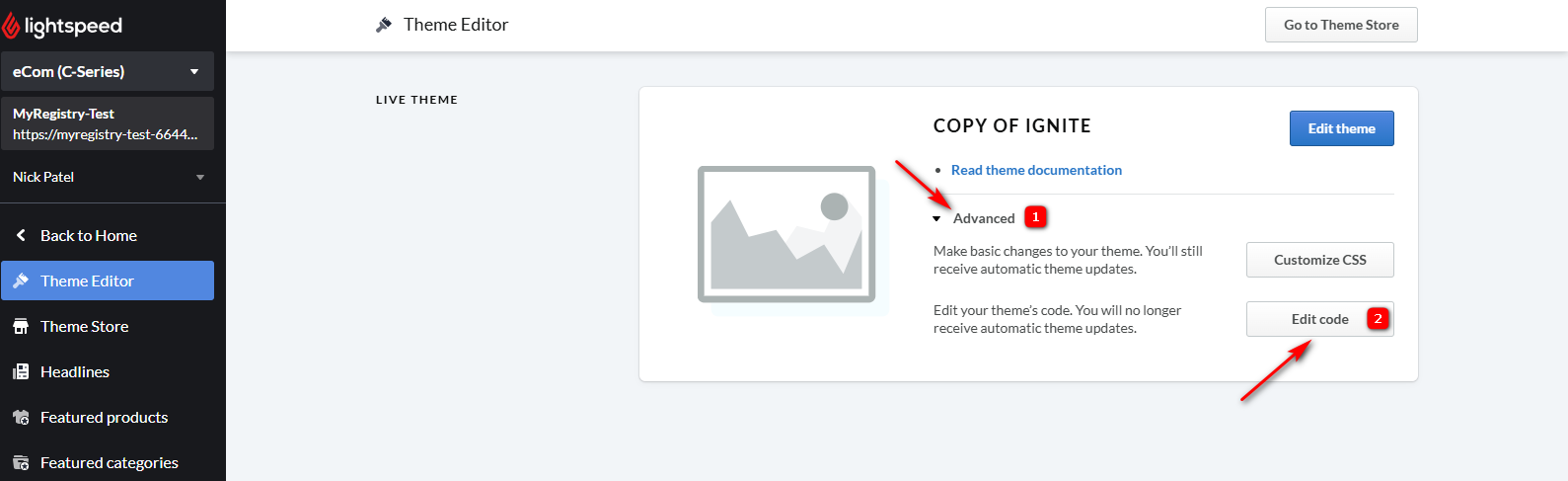
-
Open the file:
textpage.rain -
Paste the following script before the closing
</body>tag (replace !!SITEKEY!! with your MyRegistry SiteKey):
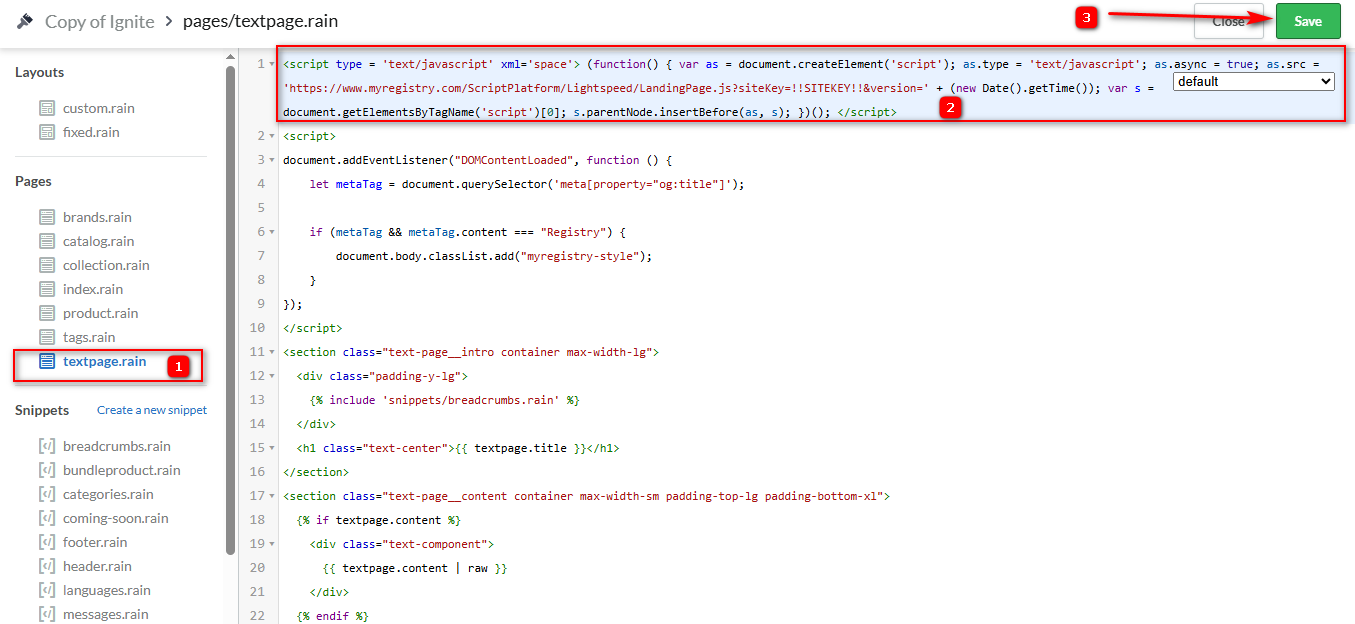
<script type='text/javascript' xml='space'>
(function() {
  var as = document.createElement('script');
  as.type = 'text/javascript';
  as.async = true;
  as.src = 'https://www.myregistry.com/ScriptPlatform/Lightspeed/LandingPage.js?siteKey=!!SITEKEY!!' + (new Date().getTime());
  var s = document.getElementsByTagName('script')[0];
  s.parentNode.insertBefore(as, s);
})();
</script>- Save your changes
Step 2: Create the Landing Page Category
- Go to:
Products>Categories> Add Category
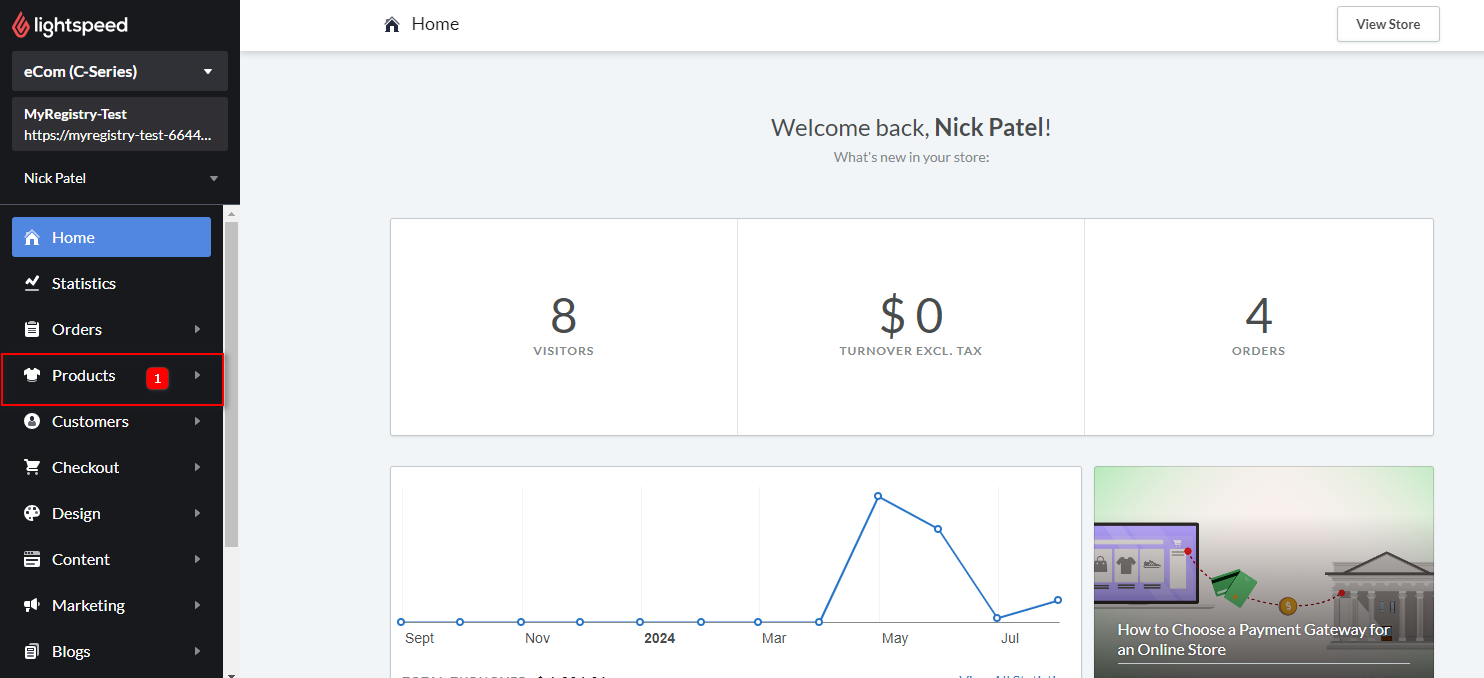
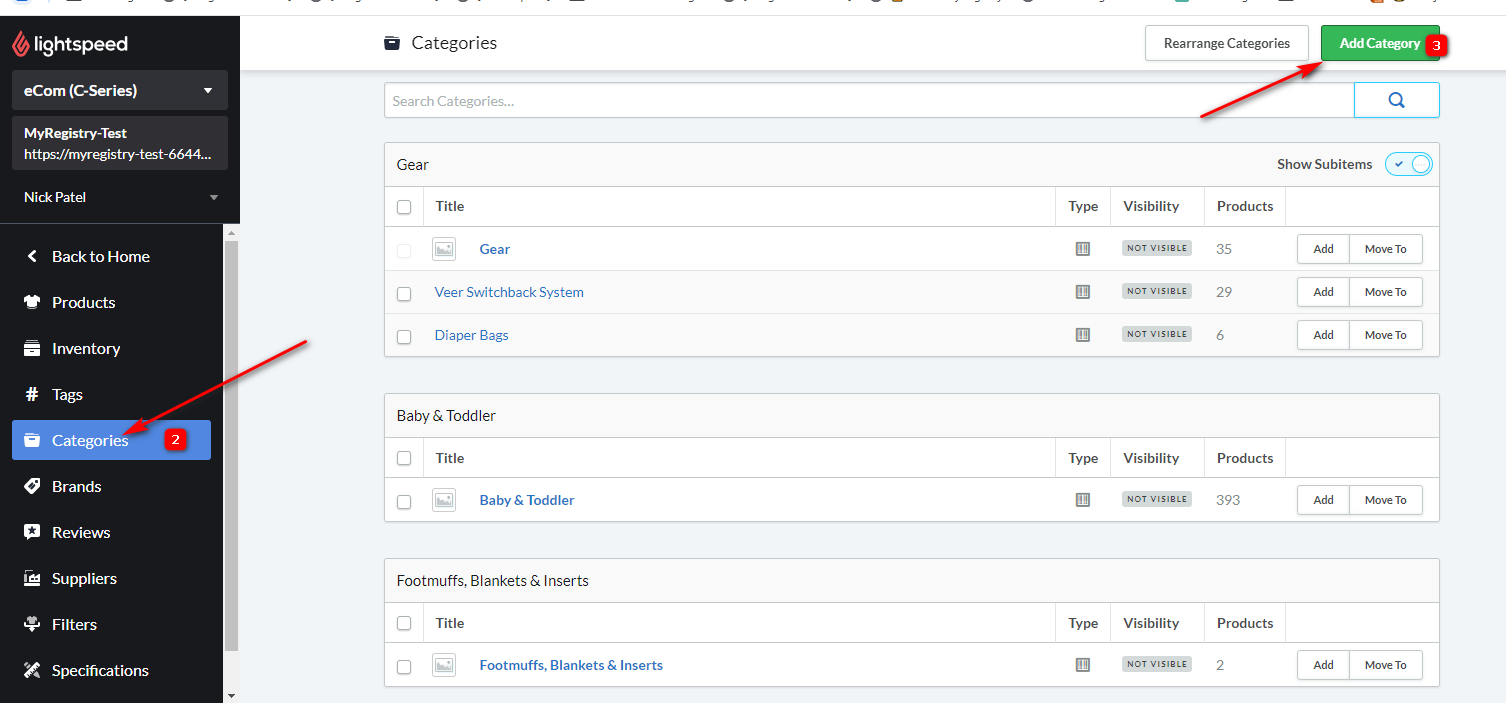
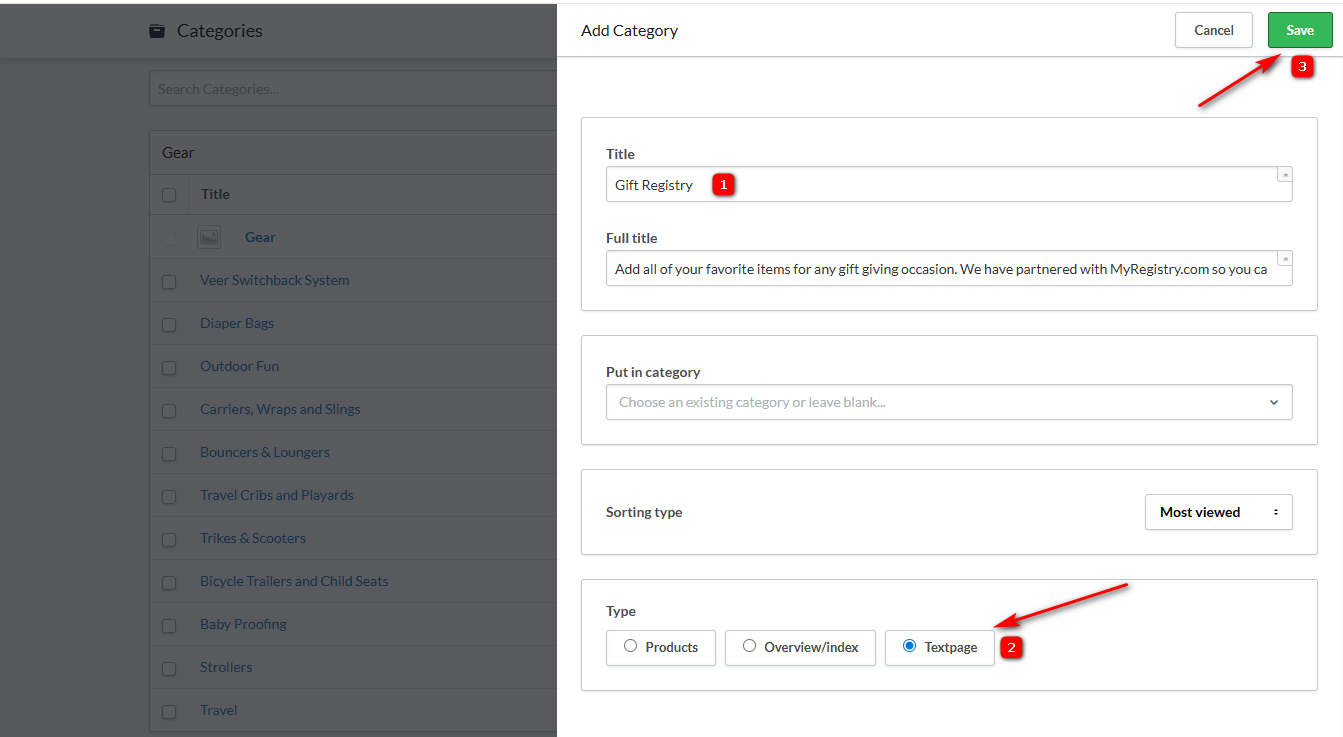
- Enter a Title (e.g.,
Registry) - Set Type to
Textpage - Click Save
Step 3: Insert the Page Holder Code
- Edit the category you just created
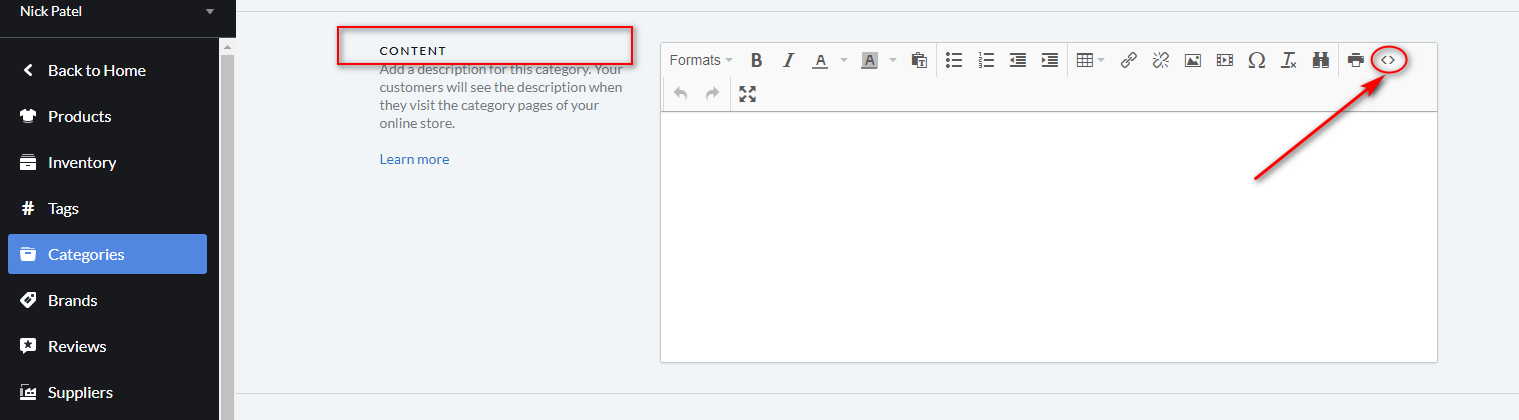
- In the Content section, paste:
<div id="myRegistryPnPLandingPage"></div>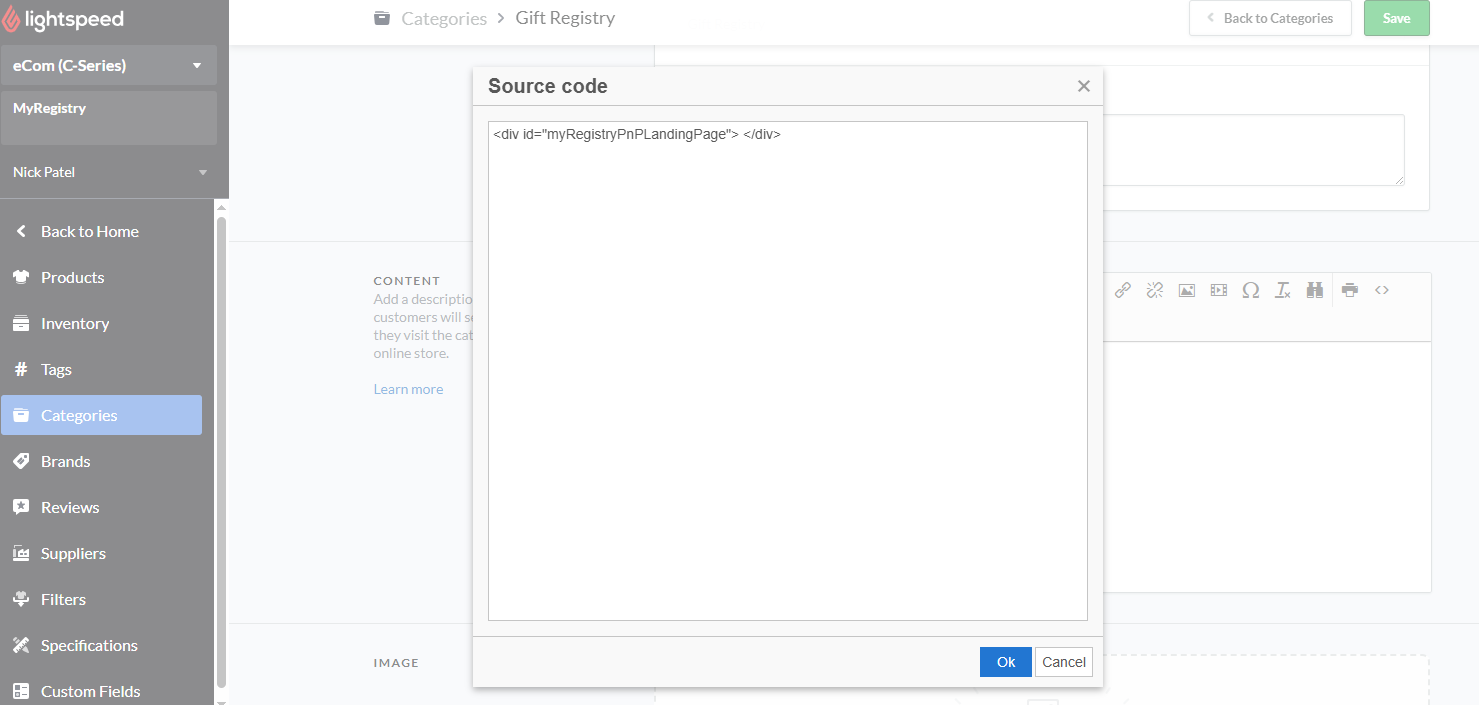
- Click OK
- Scroll to Visibility and toggle Include in Catalog to ON

- Click Save
Please connect to MyRegistry support for any errors or updating the CDN script on your partner account
Product Feed Features
A live data connection between your Lightspeed and MyRegistry, syncing your Retail and eCom product catalog
-
Login to MyRegistry Partner Dashboard
-
On the left panel navigate to
Registry Setup👉Product Feed👉Feed/Import Options -
Select
Lightspeedand choose your implementation from the dropdown: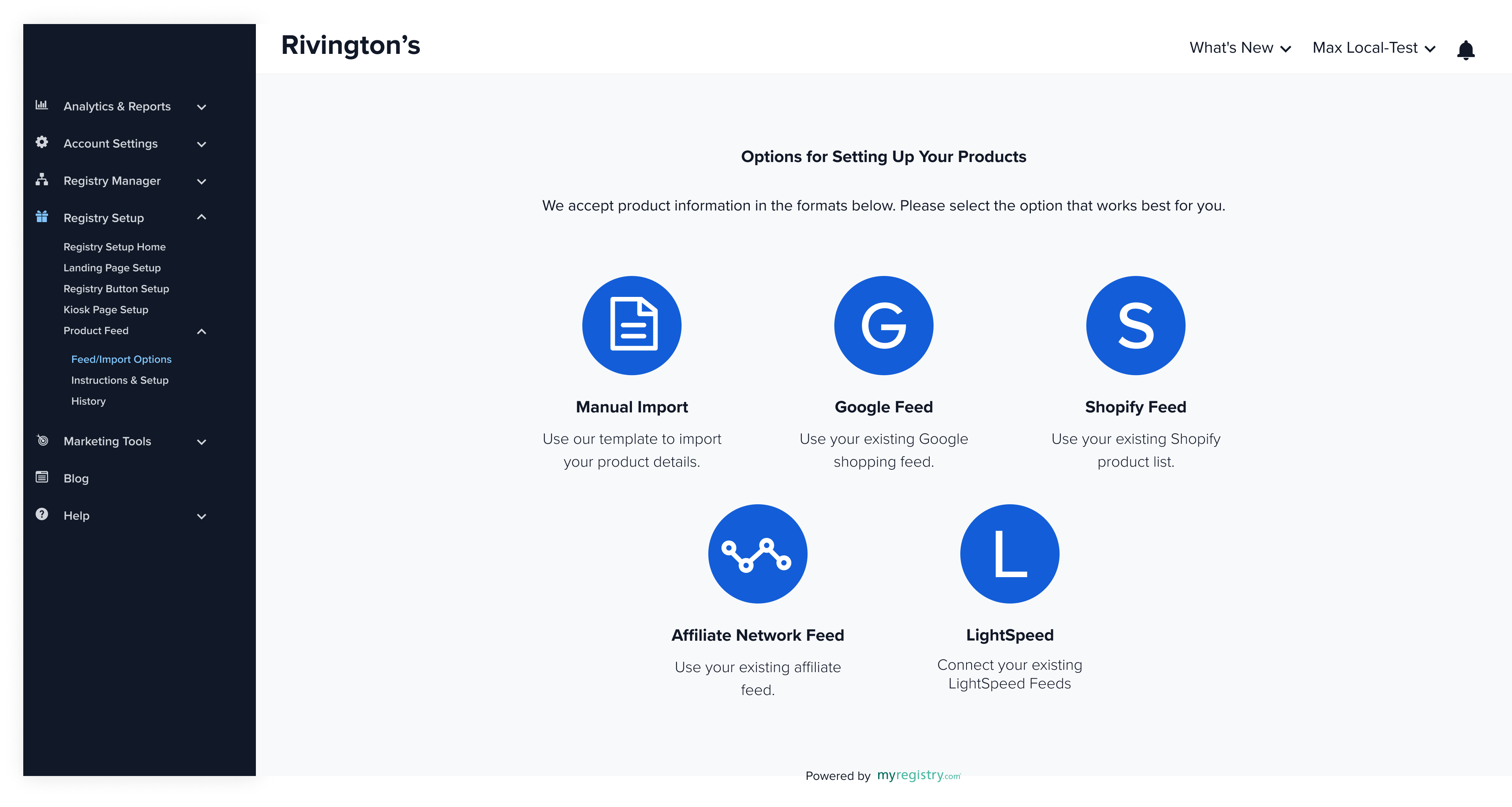
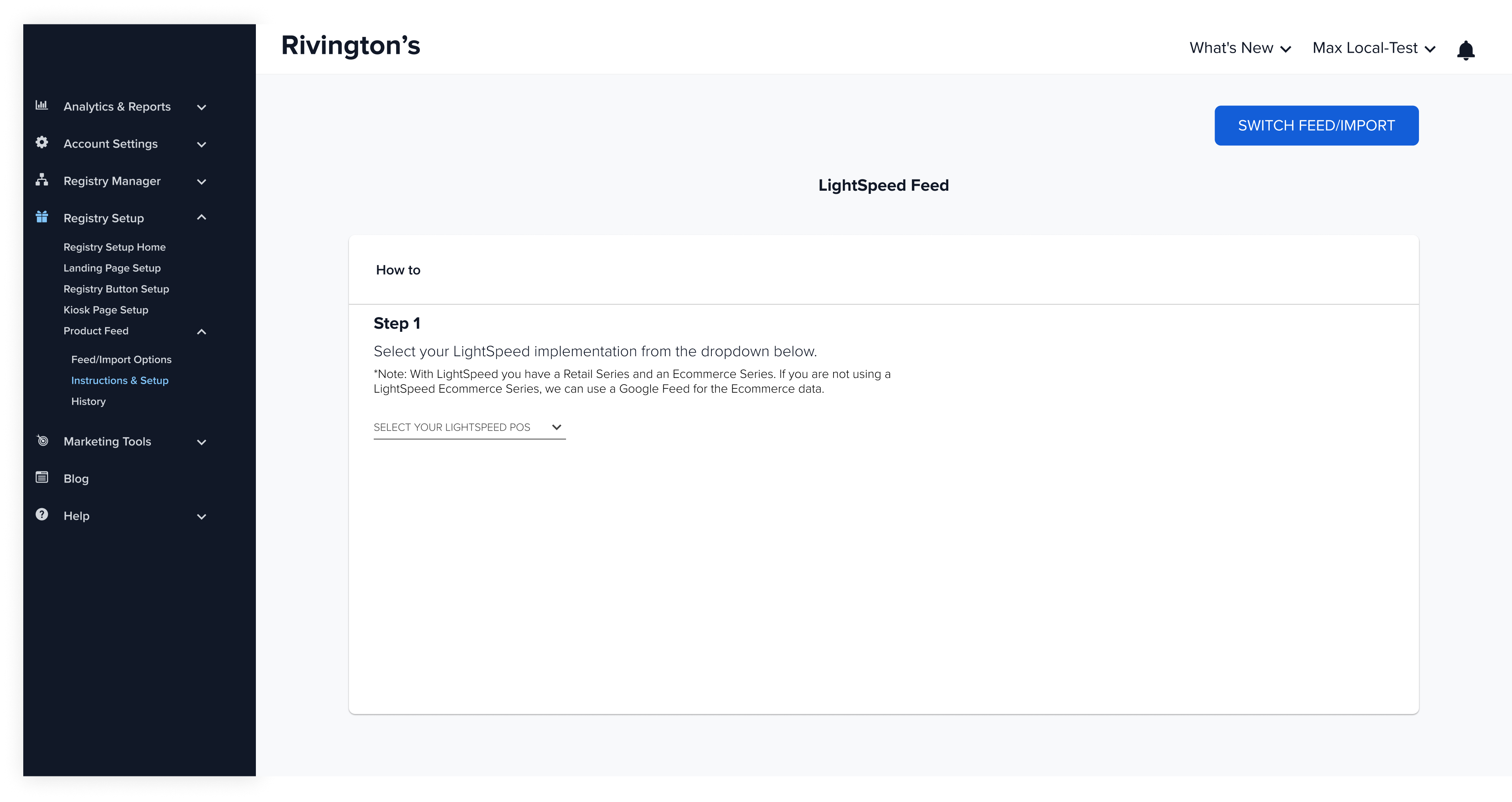
Feed Configuration
Partners have two feed configuration options:
1. Connect Lightspeed R & C Series
Pull data from both Retail and eCom
Step 1: Select Lightspeed R & C from drop down
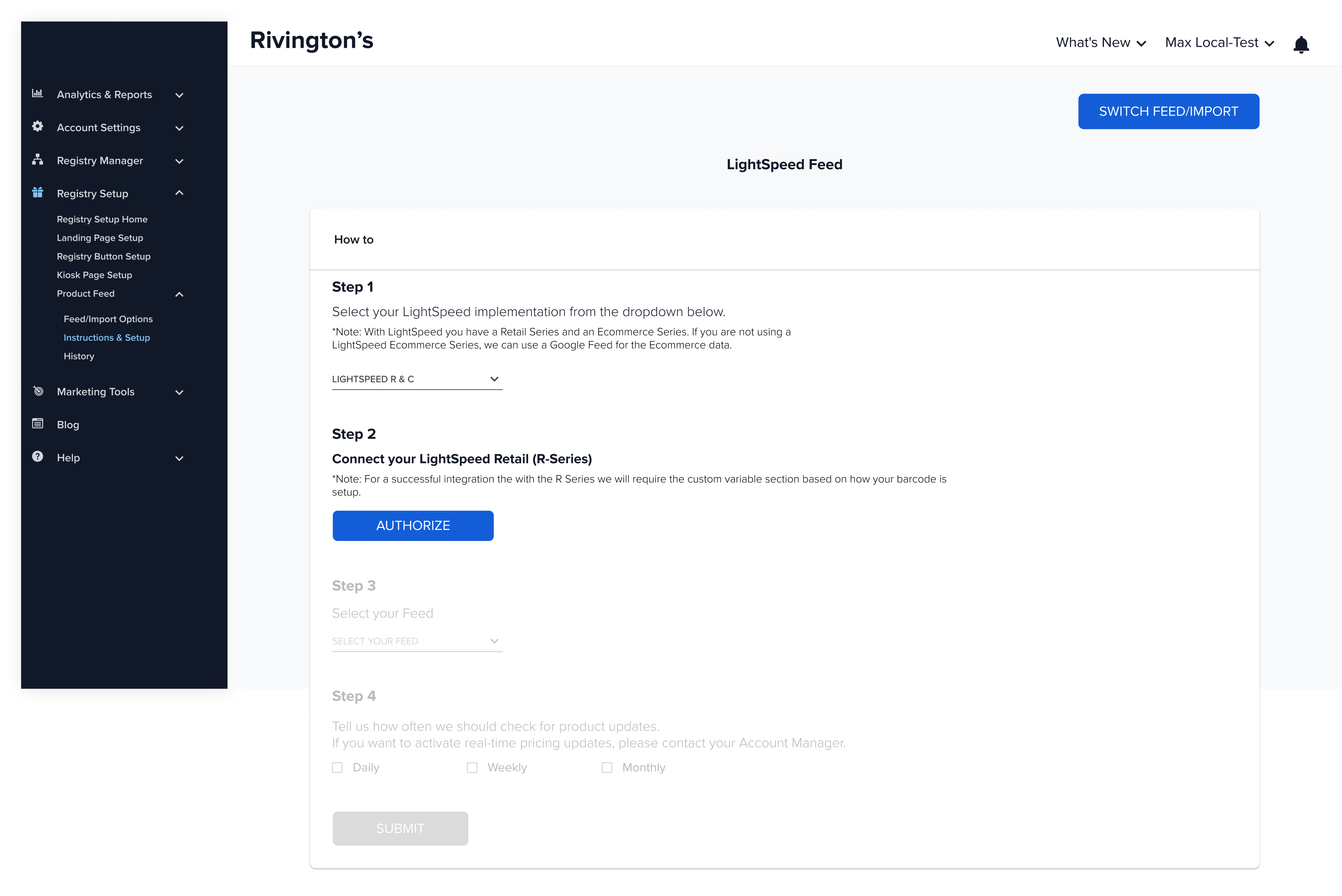
Step 2: Connect your Lightspeed Retail (R Series)
Authorize R Series Store
- Click
Authorize(navigates to R series login screen)
- Login using Retail account credentials
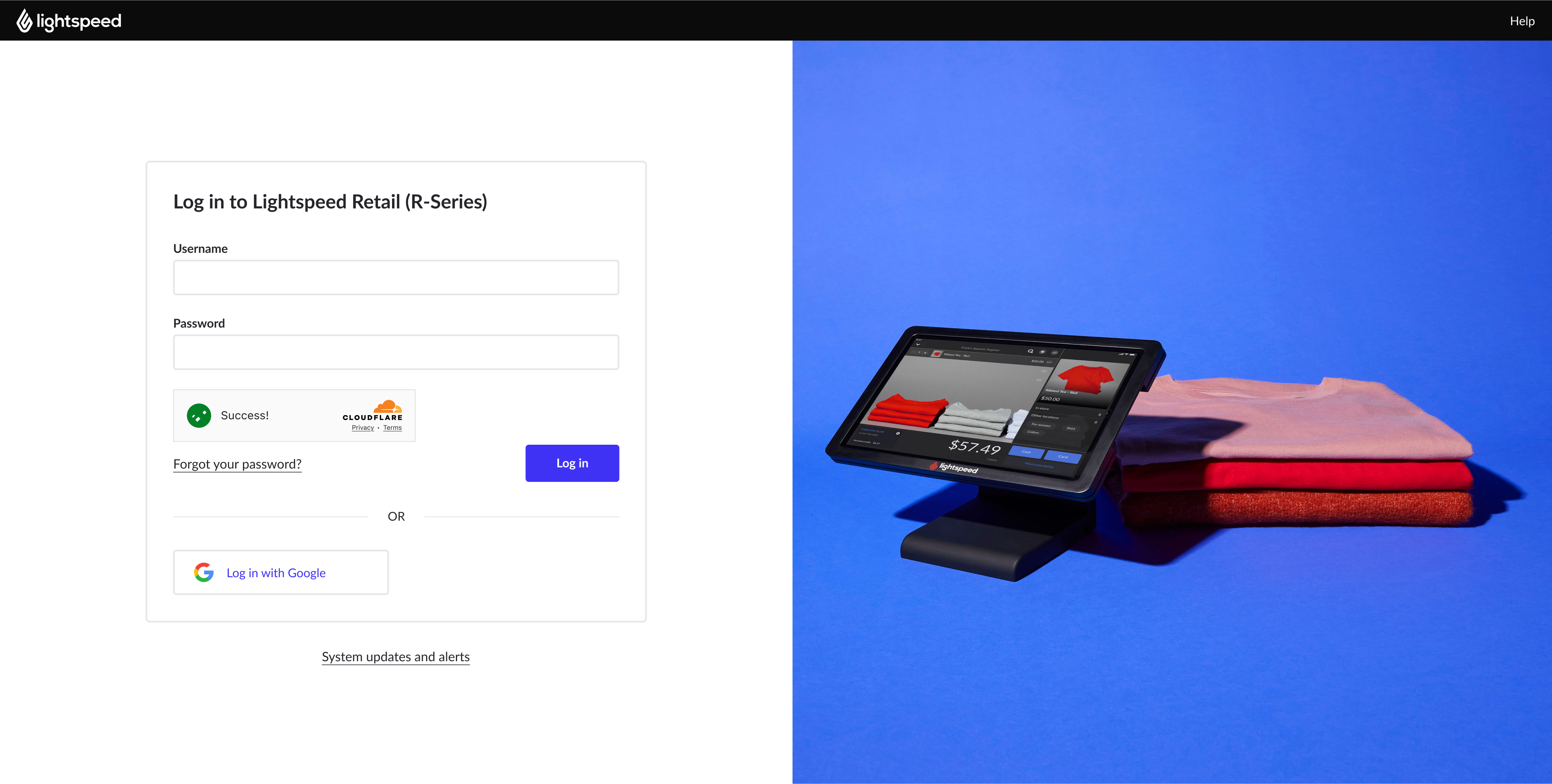
- Allow access to your Lightspeed Retail account
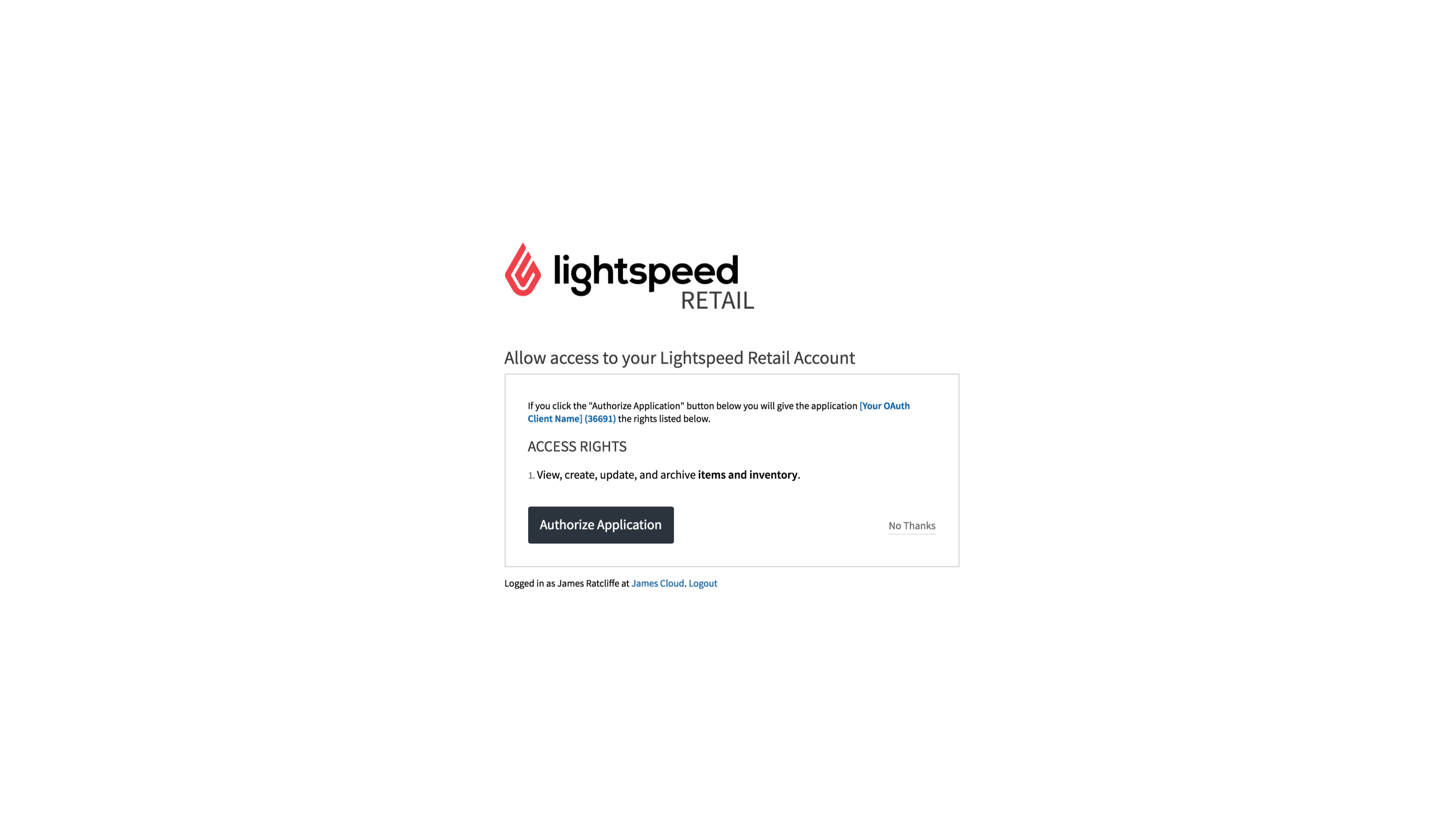
- Successful authorization will show a confirmation
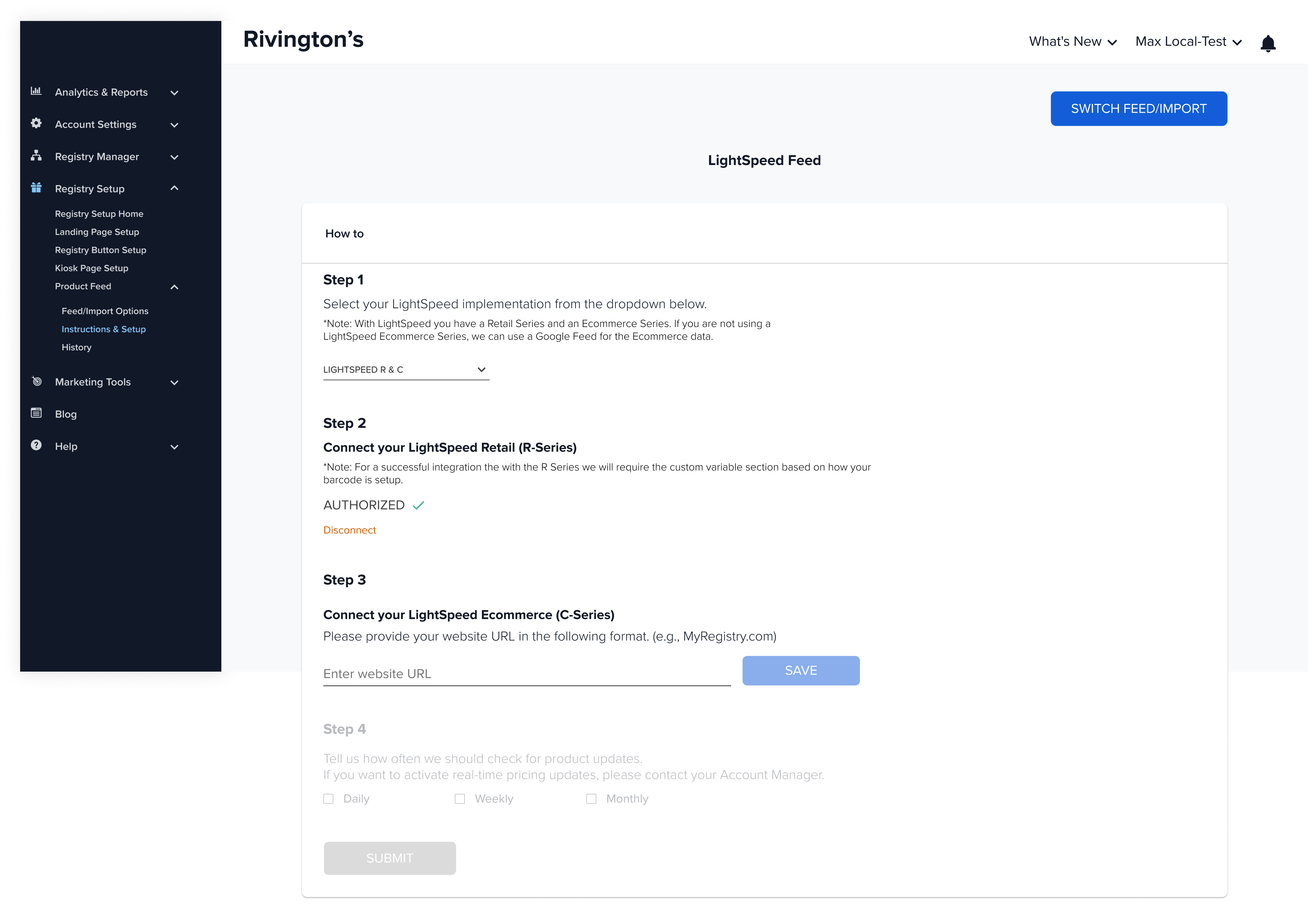
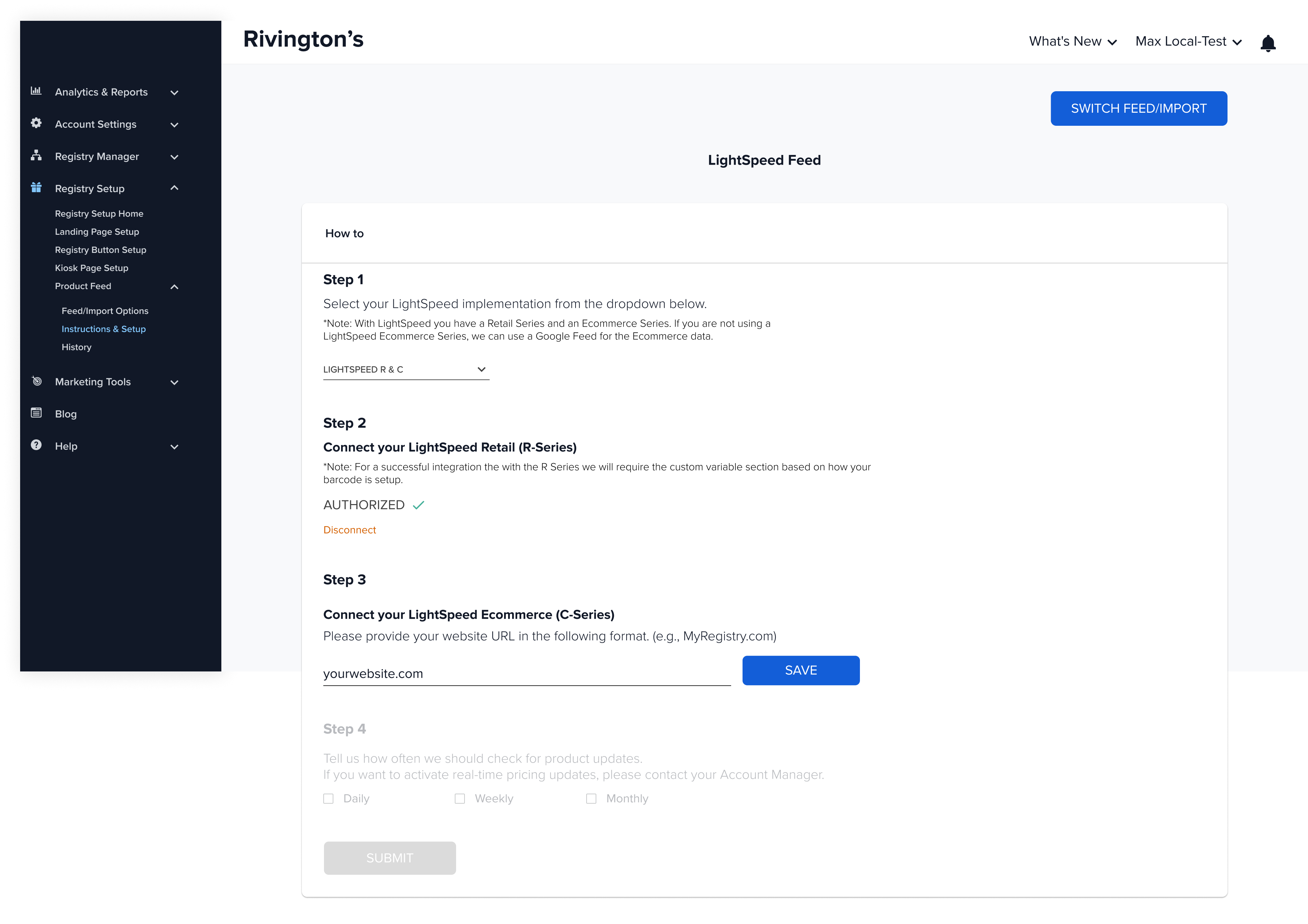
Step 3: Connect your Lightspeed eCom (C Series)
Add and Save your store Website URL in the Partner Dashboard
Step 4: Select the frequency for product updates
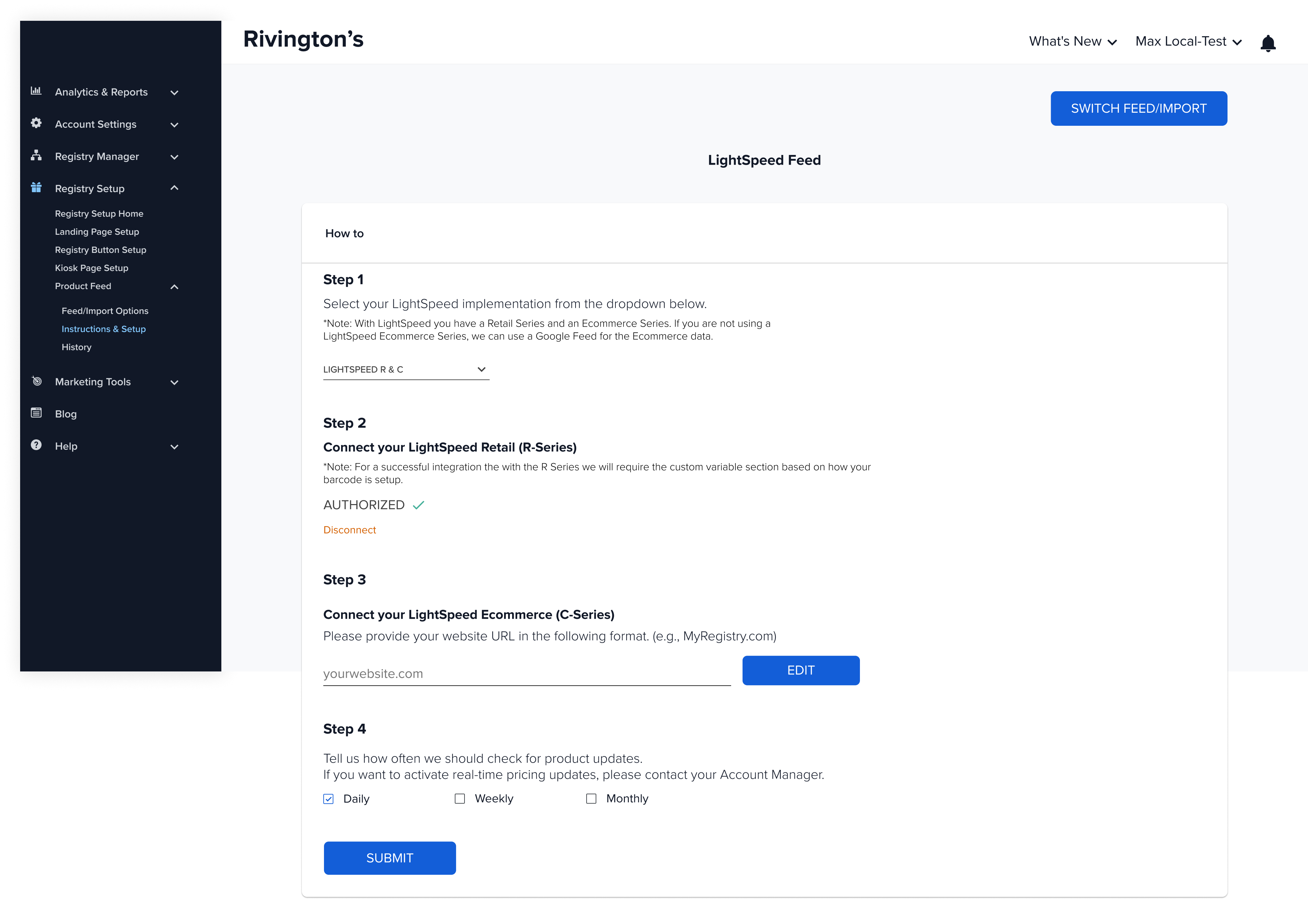
Step 5: Submit 🎉
For partners who are on other e-Com services, Google format feed is required to connect e-Com feed
2. Connect Lightspeed R & Google Feed
Pull POS from R and use Google Feed for eCom catalog
Step 1: Select Lightspeed R & Google Feed from drop down
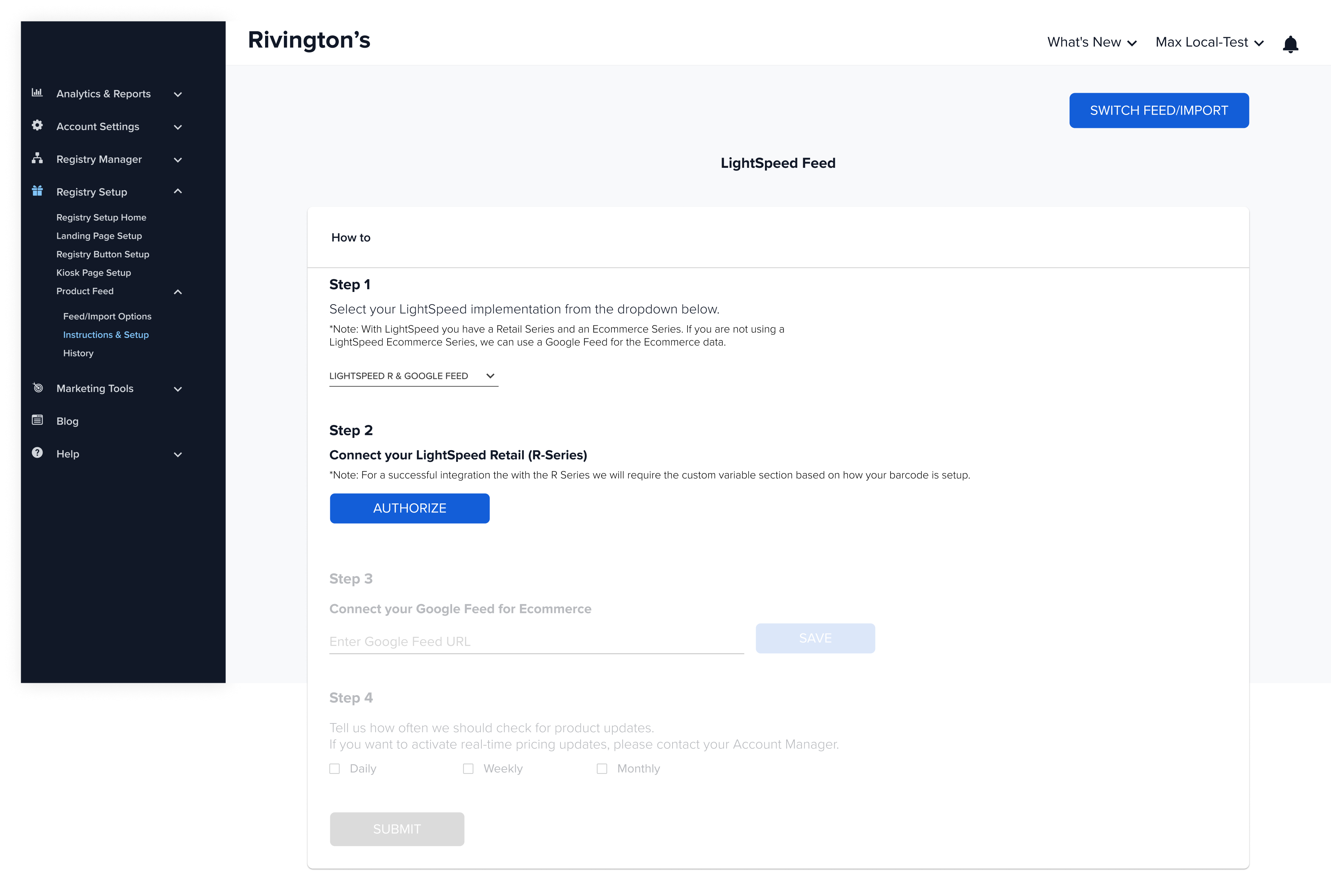
Step 2: Connect your Lightspeed Retail (R Series)
Authorize R Series Store
- Click
Authorize(navigates to R series login screen)
- Login using Retail account credentials
- Allow access to your Lightspeed Retail account
- Successful authorization will show a confirmation
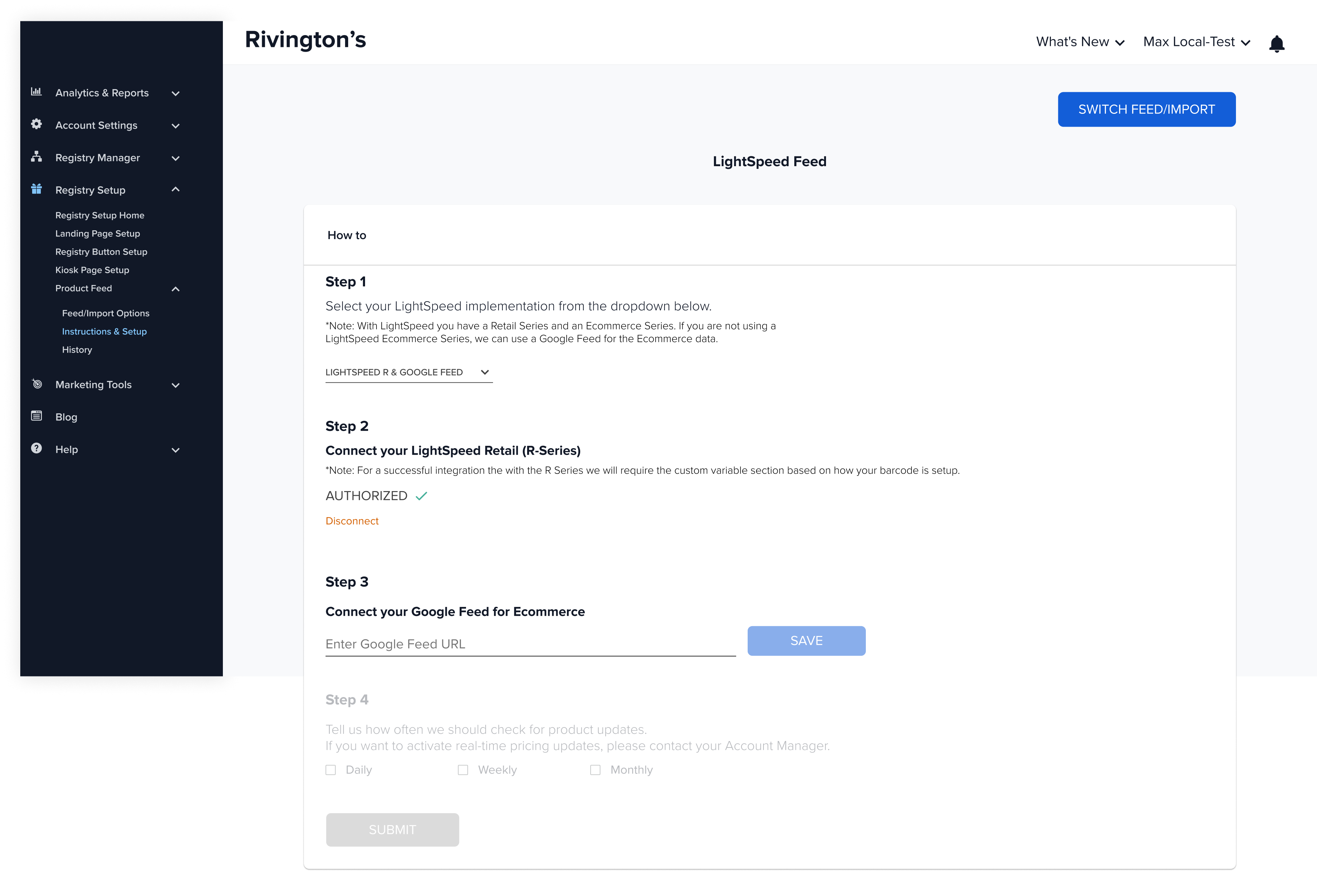
Step 3: Connect your Google Feed for Ecommerce
❗Ensure that SKU data is placed under "mpn" column, Incorrect mapping may cause feed errors
- Paste the Google Feed url and click Save
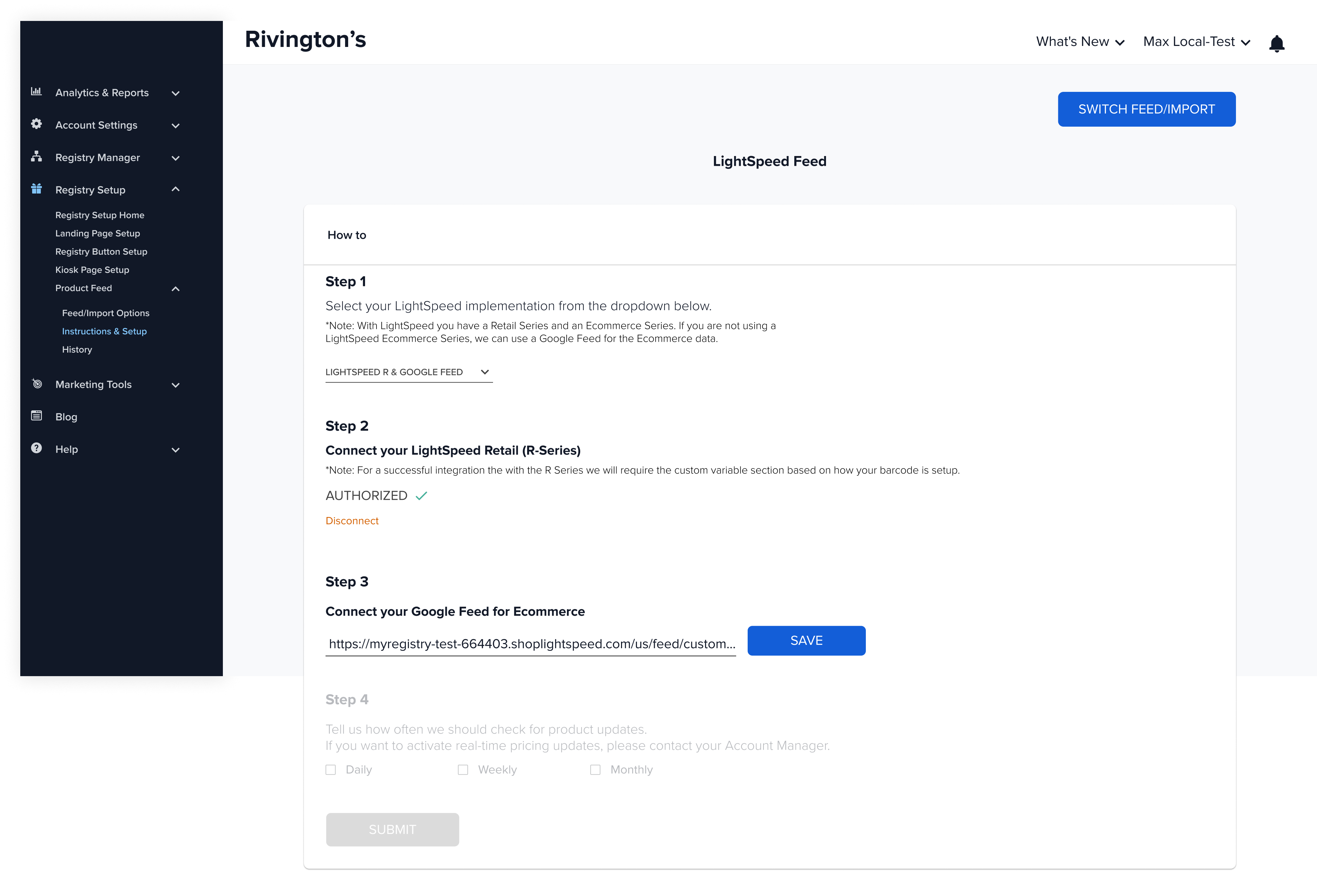
Step 4: Select the frequency for product updates
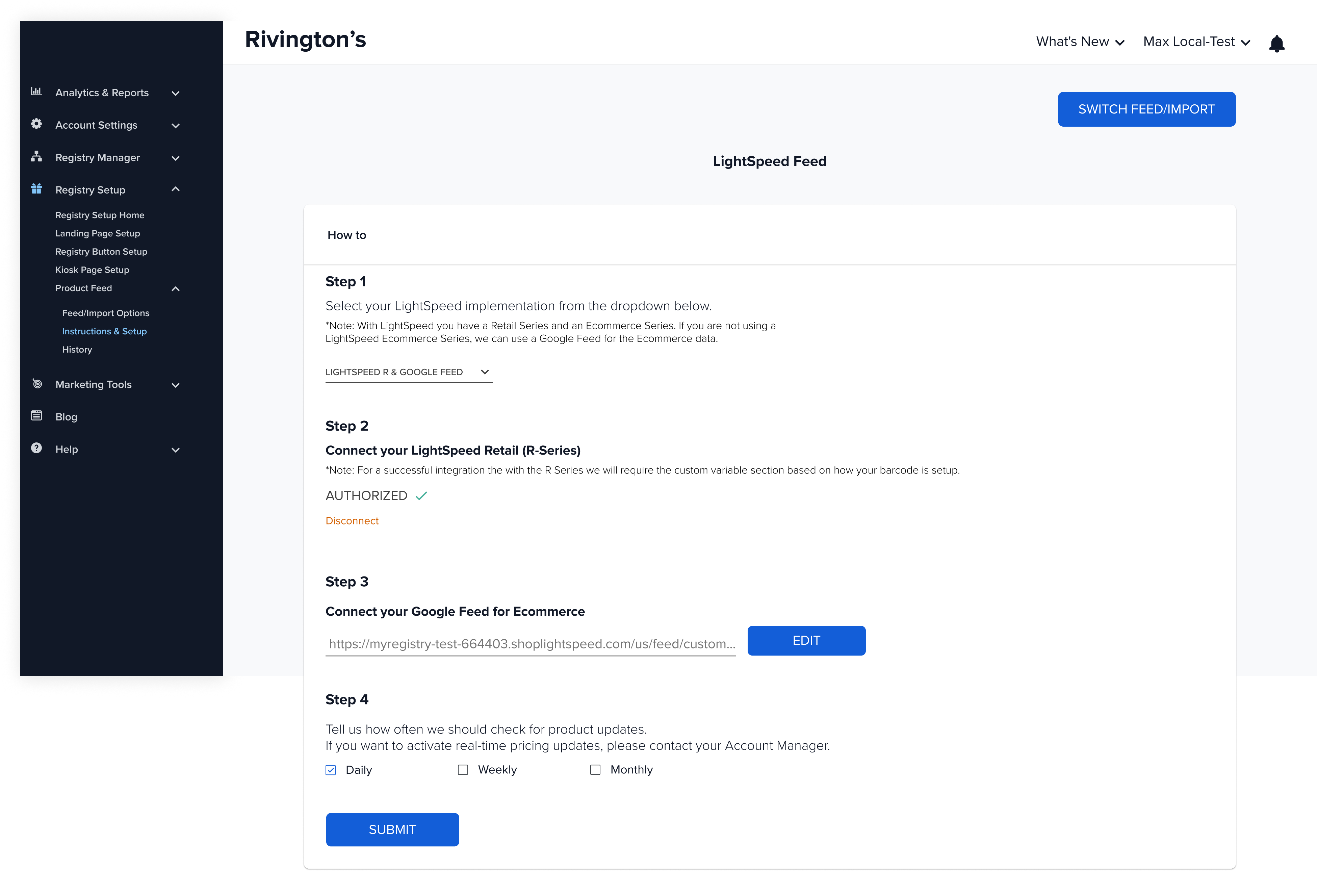
Step 5: Submit 🎉
Updated about 1 year ago
What’s Next
Need Support?
If you're unsure or need assistance with your integration, contact our team:
Email: [email protected]
We’re here to help get your registry features live and working smoothly!