
Lightspeed X & E Series
Integrate your Lightspeed Retail (X-Series) and eCom (E-Series) store with MyRegistry.com
MyRegistry enables gift registry functionality by connecting directly with your Lightspeed X & E account allowing to integrate powerful features for a seamless universal gift registry experience
You'll complete setup across two platforms:
- Lightspeed X & E Series
- MyRegistry Partner Dashboard
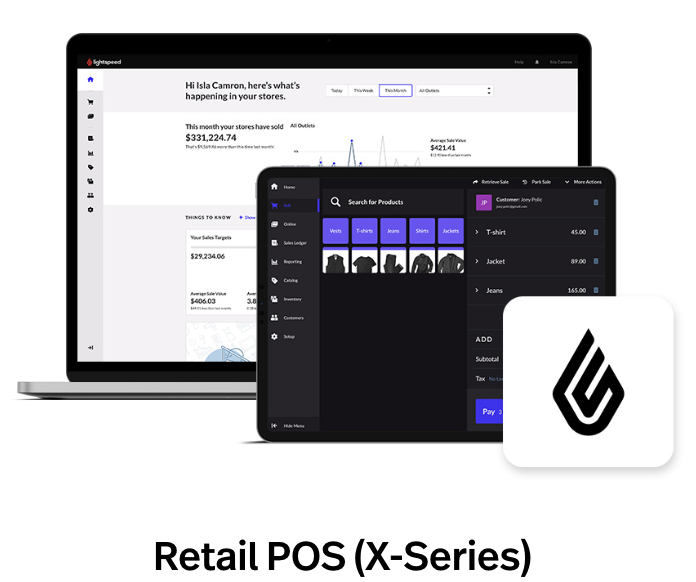
Handles in-store inventory and transactions
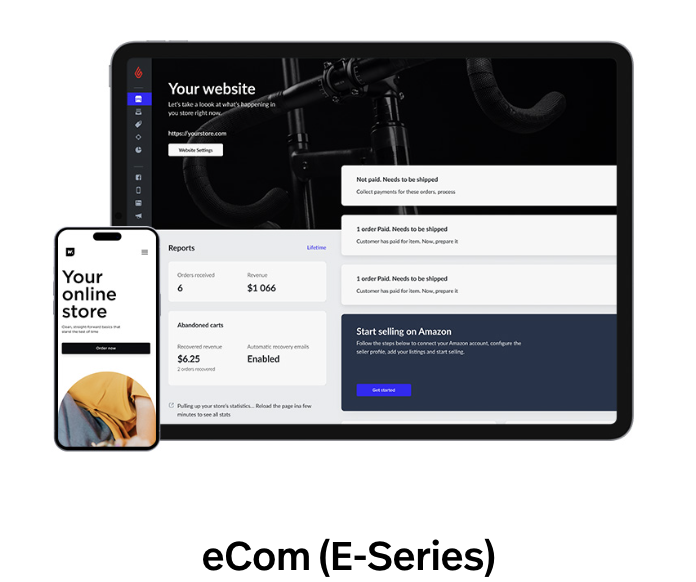
Ecommerce platform for your online storefront
⚙️ Feature Installations
Setup is done entirely via Lightspeed and MyRegistry Partner Dashboard - no direct code editing is required
 Before starting, ensure the following Prerequisites are in place:
 Lightspeed Admin Access (Retail & eCom)
 Access to the MyRegistry Partner Dashboard
 SiteKey from your Partner Dashboard
 Product Variants and SKUs are properly configured
 Important: Skipping these steps may result in improper widget setup or missing product sync
Ecommerce Features
Add scripts to your E Series (eCom) site to enable core MyRegistry features
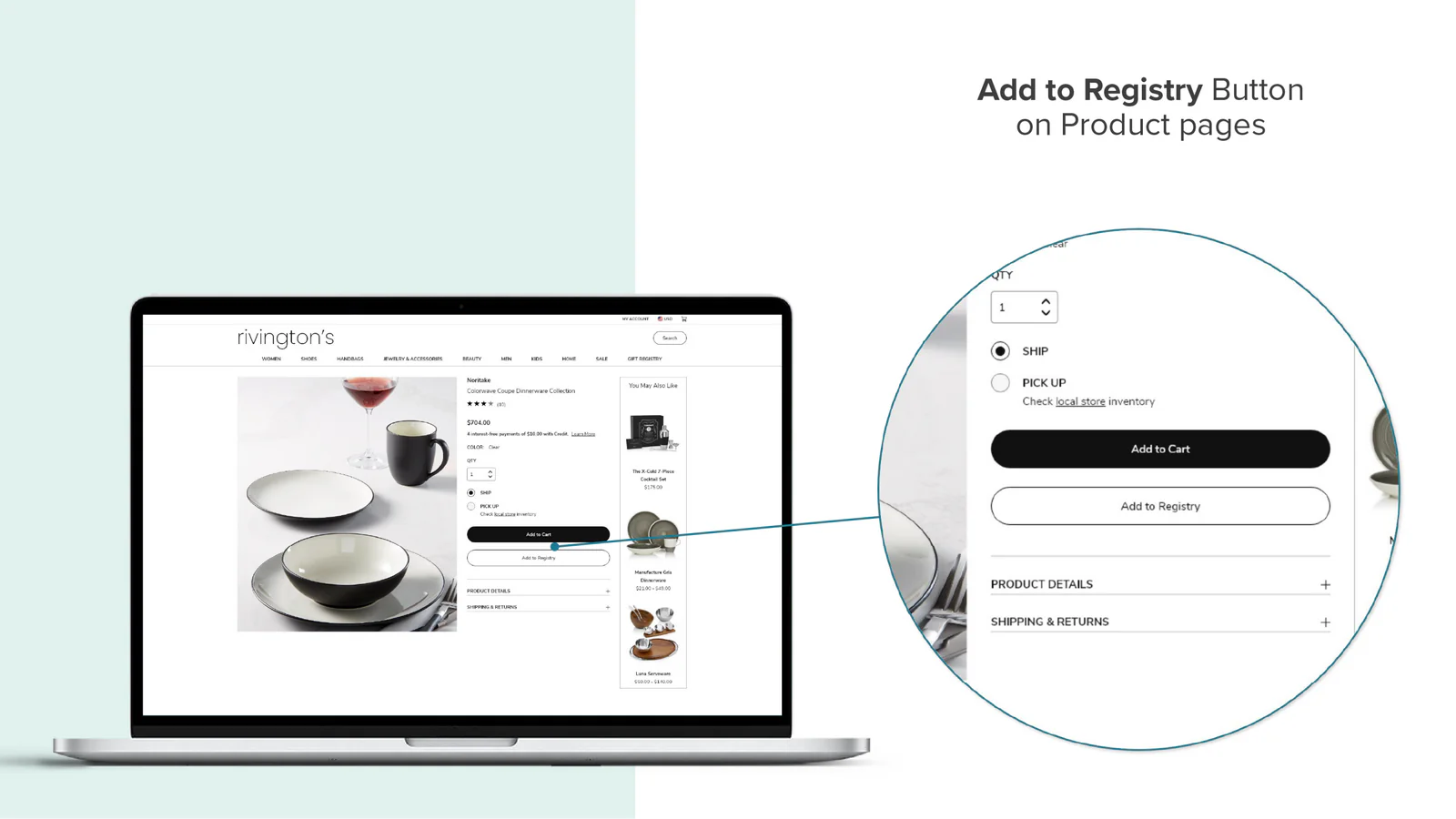
Add any product directly to MyRegistry gift list
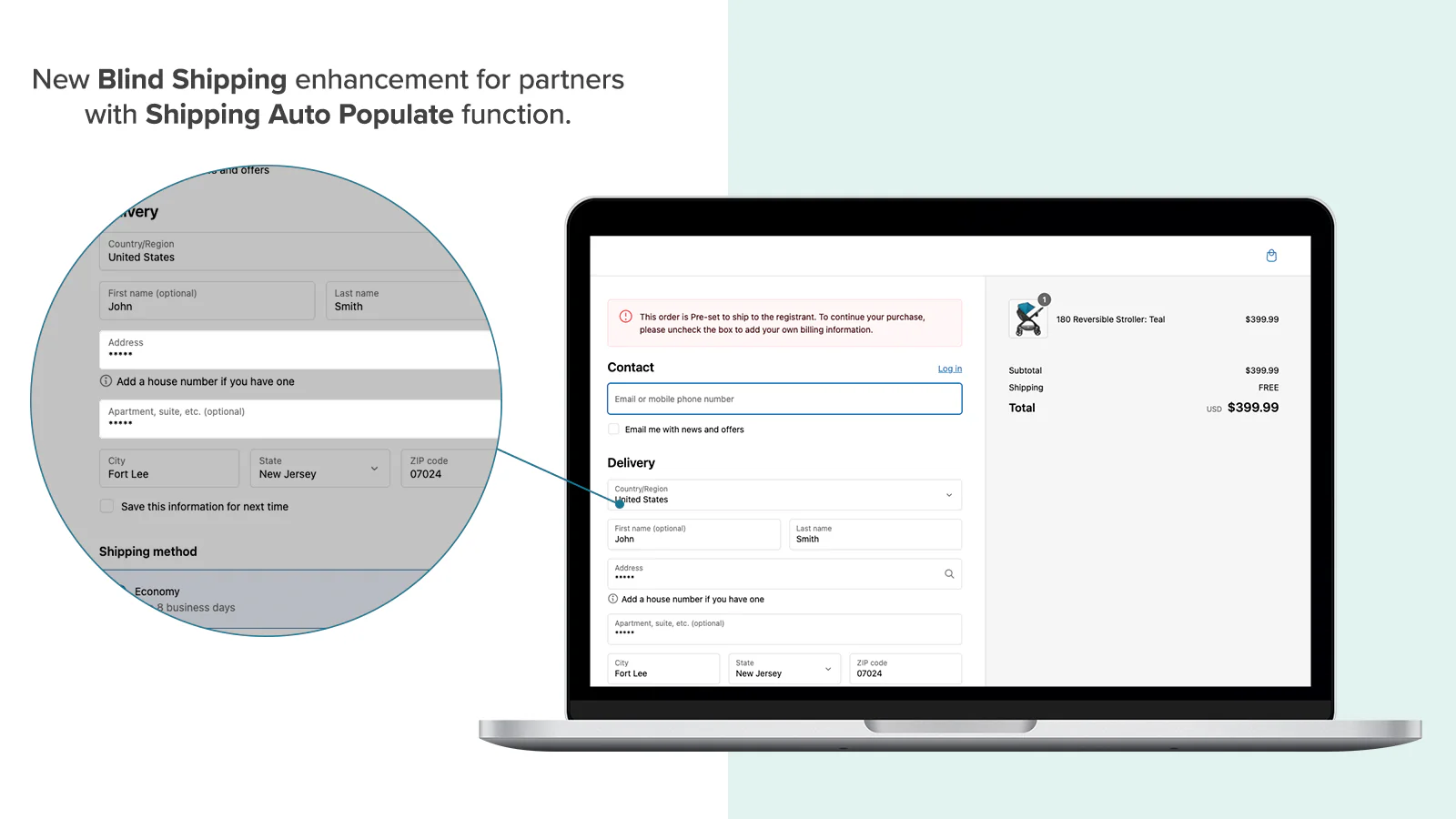
Pre-fills gift recipient’s address during checkout
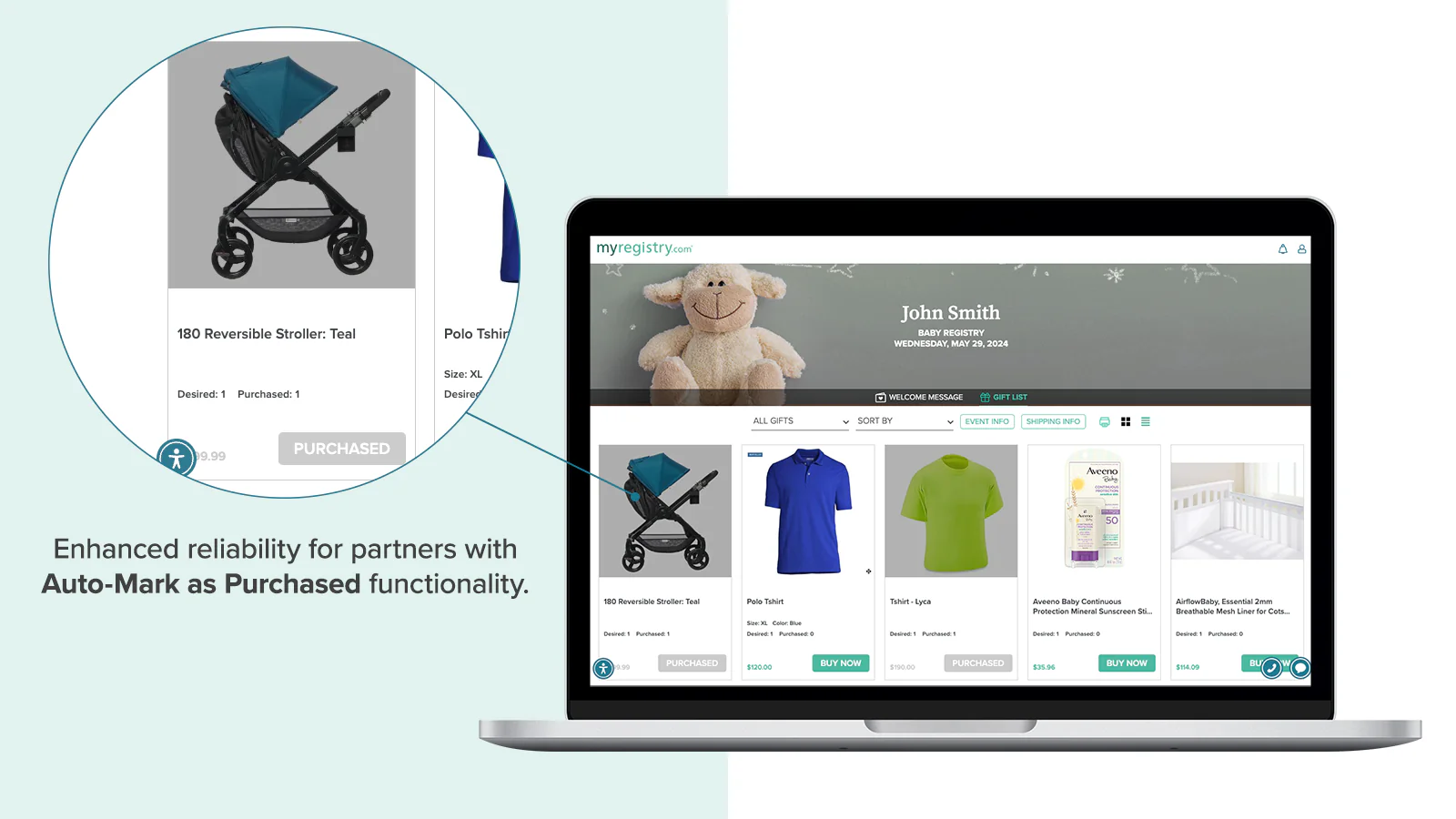
Automatically marks items as purchased on gift lists
🚨 Before you begin please make sure you have received your sitekey from MyRegistry.com
Add to Lightspeed E Series
Install the MyRegistry scripts to enable Add to Registry, Shipping Address Autopopulate and Order Confirmation functionality
-
Visit Lightspeed X series and Login with your account credentials
-
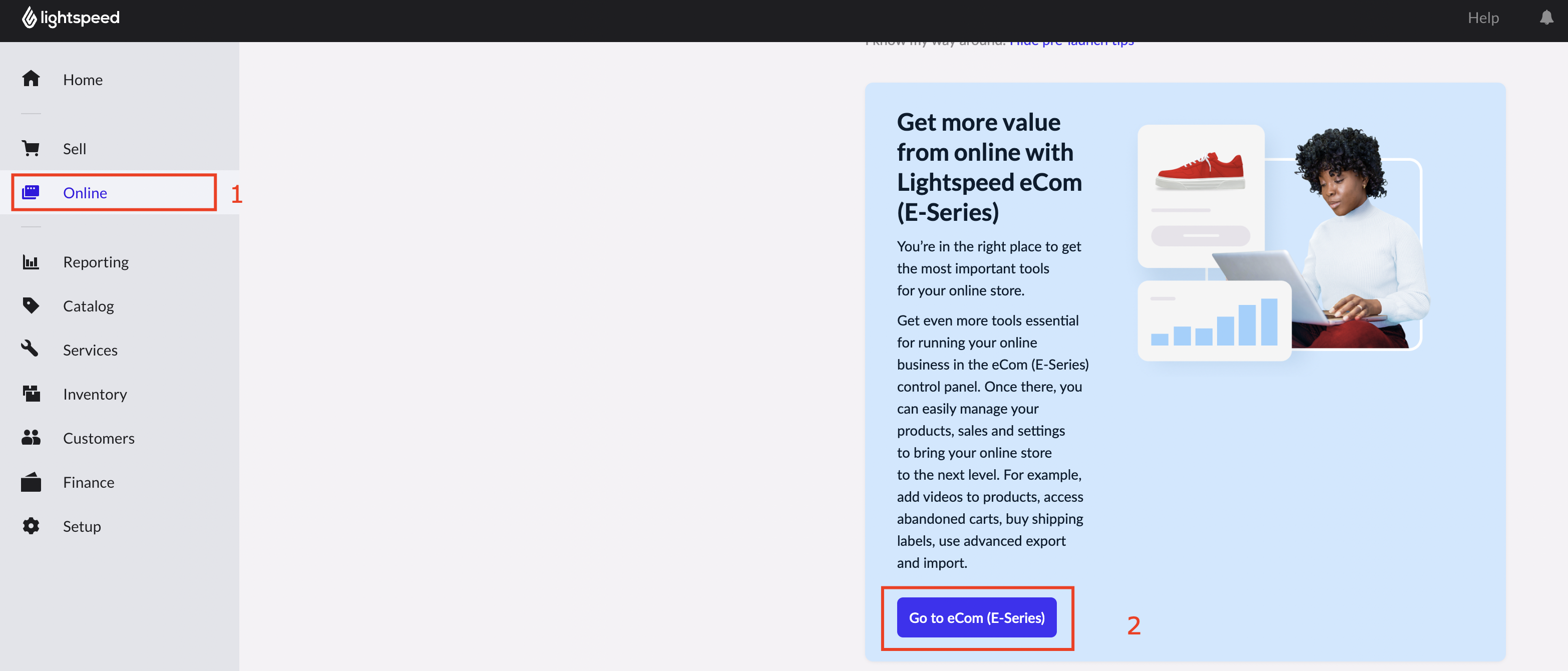
On the left panel select
Onlineand scroll down to selectGo to eCom (E-Series)
- Navigate to
Websitemenu in the left panel and scroll down toAdvanced website settingssection and update theCustom Javascript Codescript
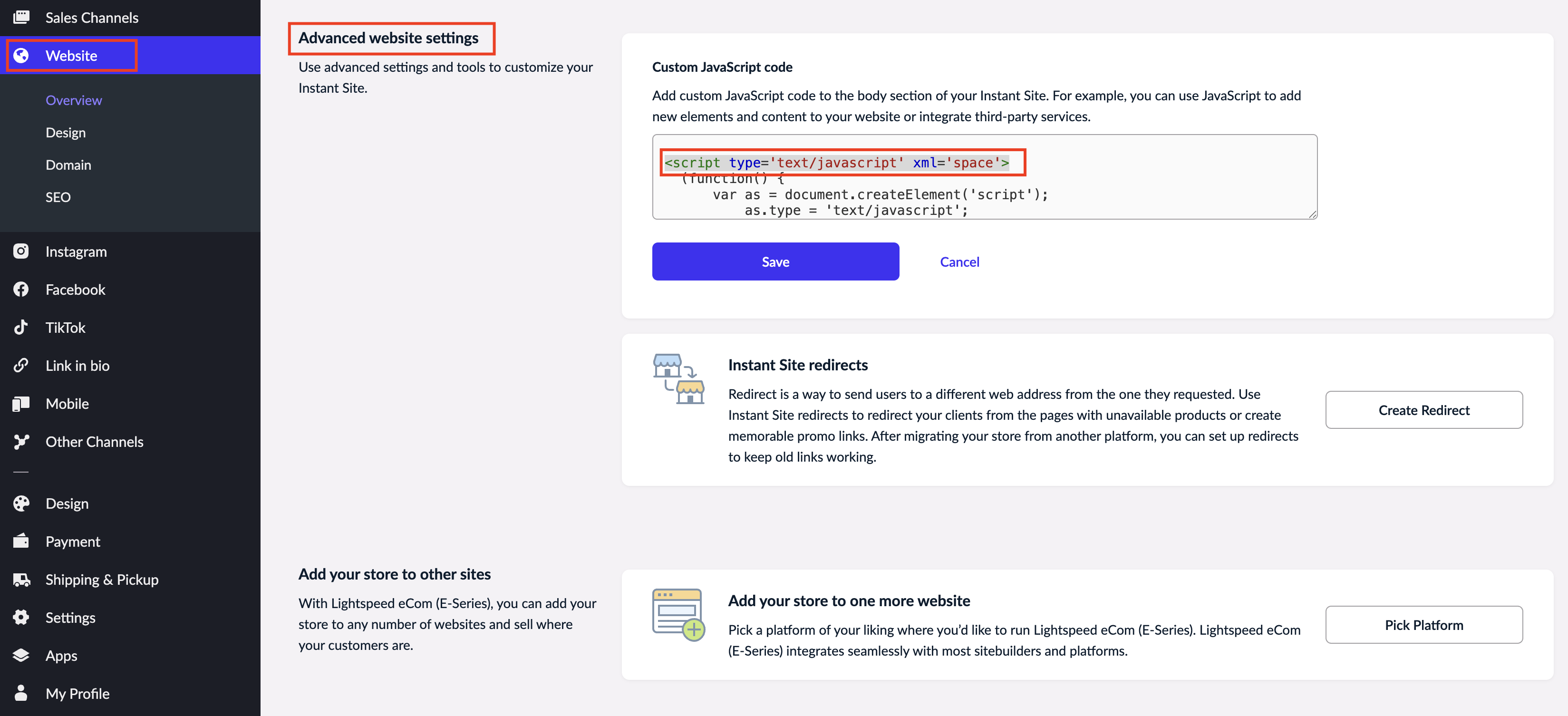
- Make sure to replace !!SITEKEY!! with your actual SiteKey before pasting
<script src="https://cdn.myregistry.com/merchants/scripts/pnp/v4/!!SITEKEY!!/Launcher.js" />- Click Save to apply
Please connect to MyRegistry support for any errors or updating the CDN script on your partner account
Product Feed Features
A live data connection between your Lightspeed and MyRegistry, syncing your Retail and eCom product catalog
-
Login to MyRegistry Partner Dashboard
-
On the left panel navigate to
Registry Setup👉Product Feed👉Feed/Import Options -
Select
Lightspeedand choose your implementation from the dropdown: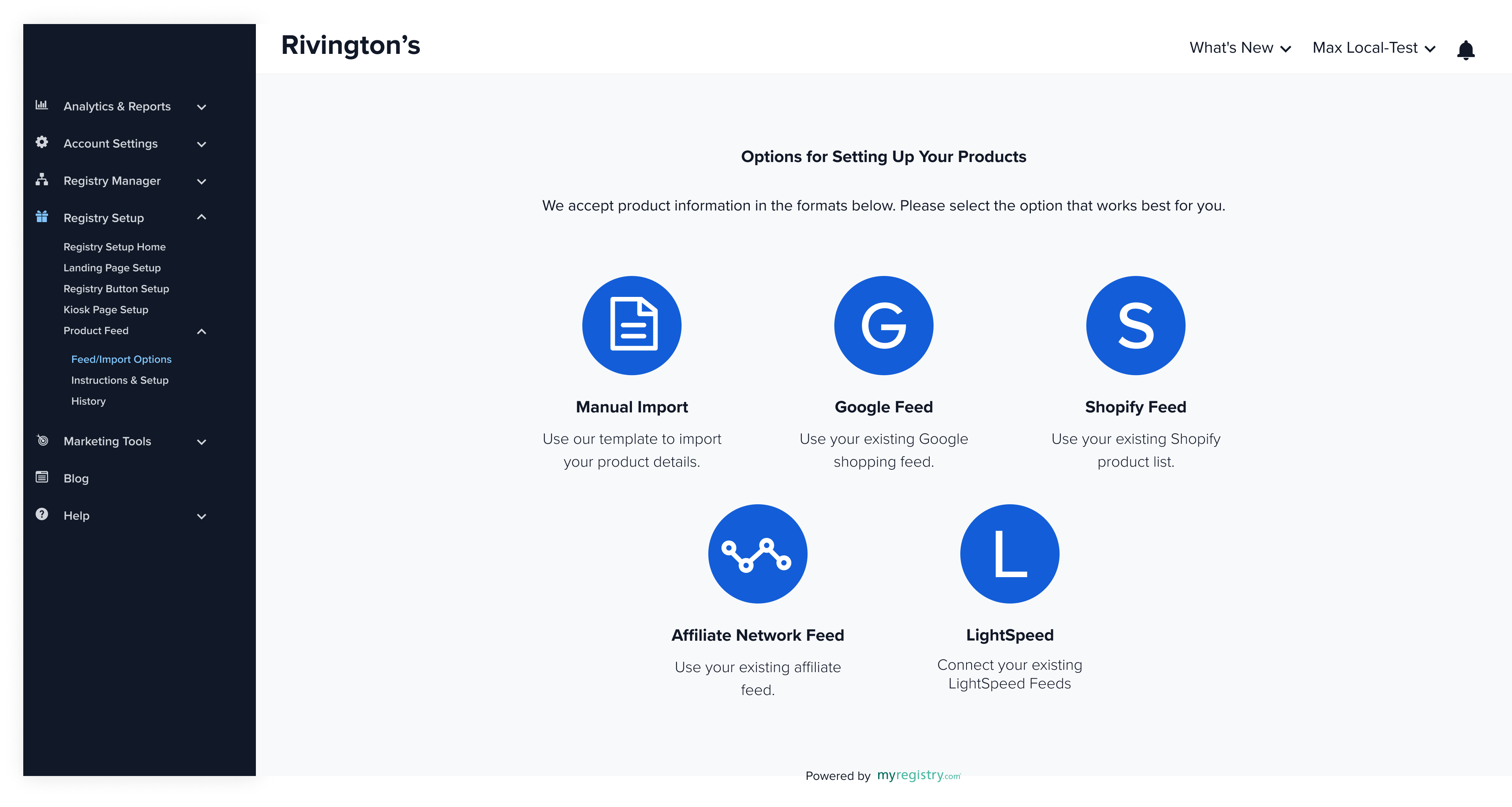
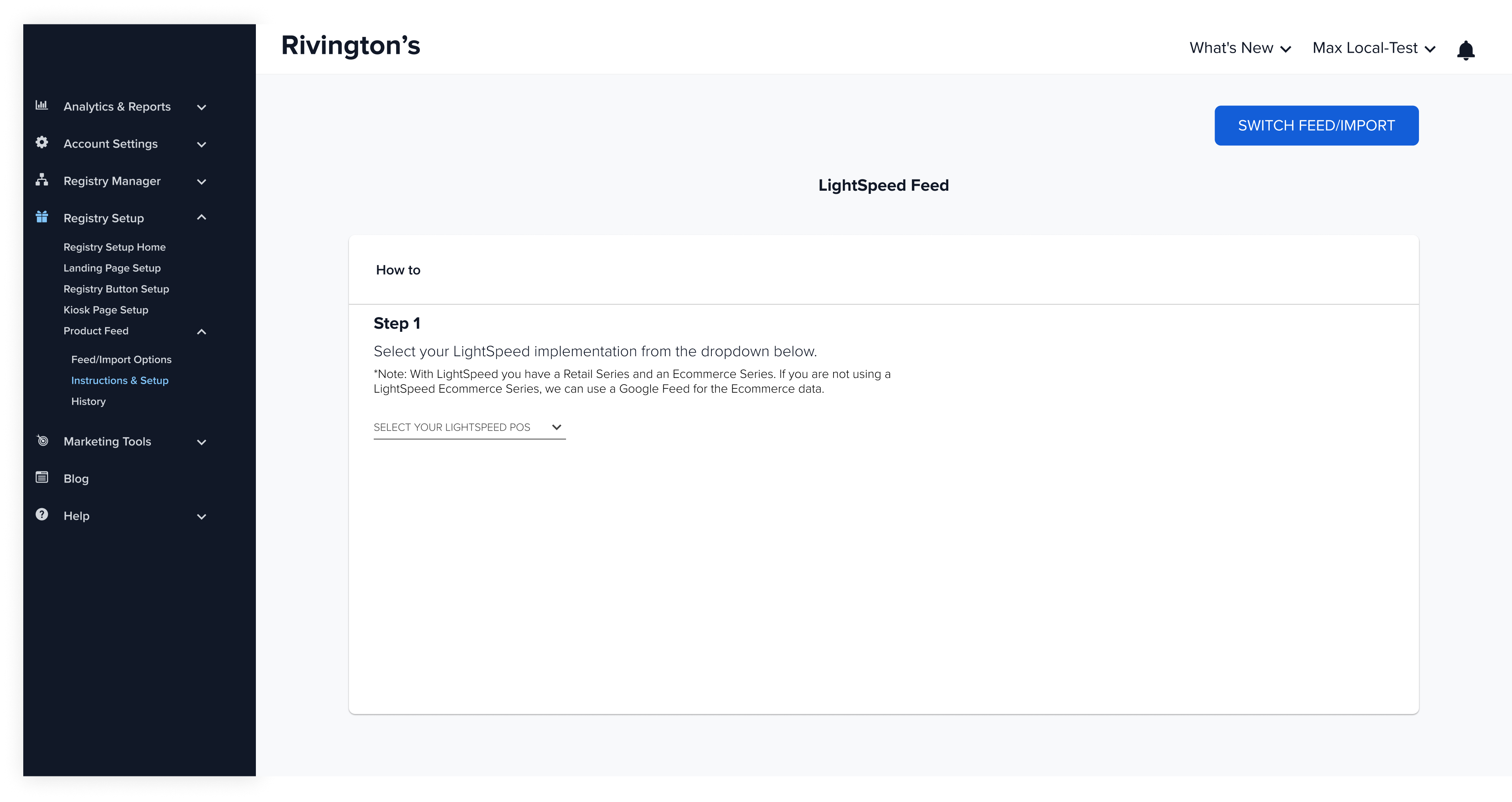
Connect Product Feed
Partners have two feed configuration options:
1. Connect Lightspeed X & E Series
Pull data from both Retail and eCom
Step 1: Select Lightspeed X & E from drop down
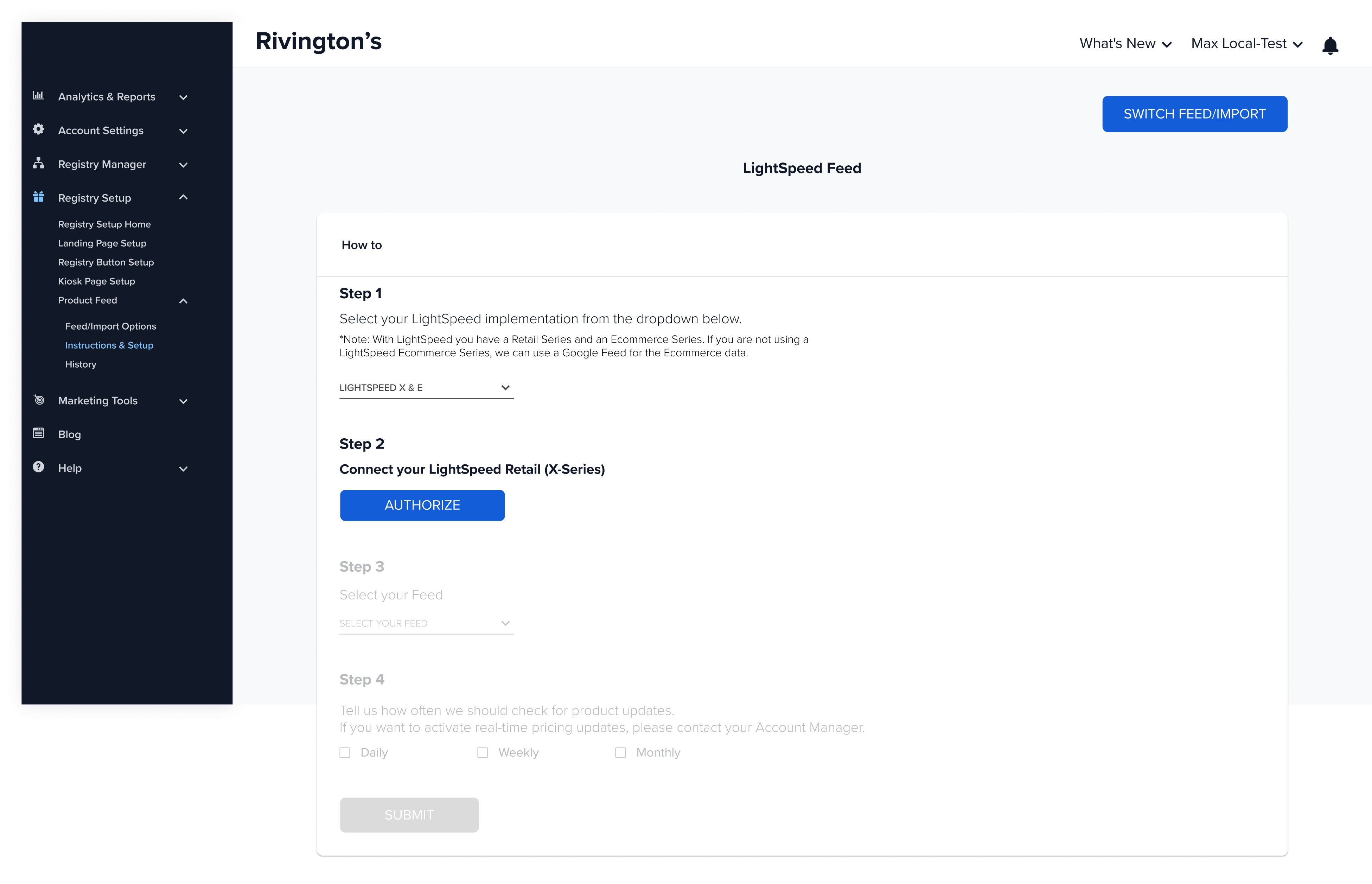
Step 2: Connect your Lightspeed Retail (X Series)
Authorize X Series Store
- Click
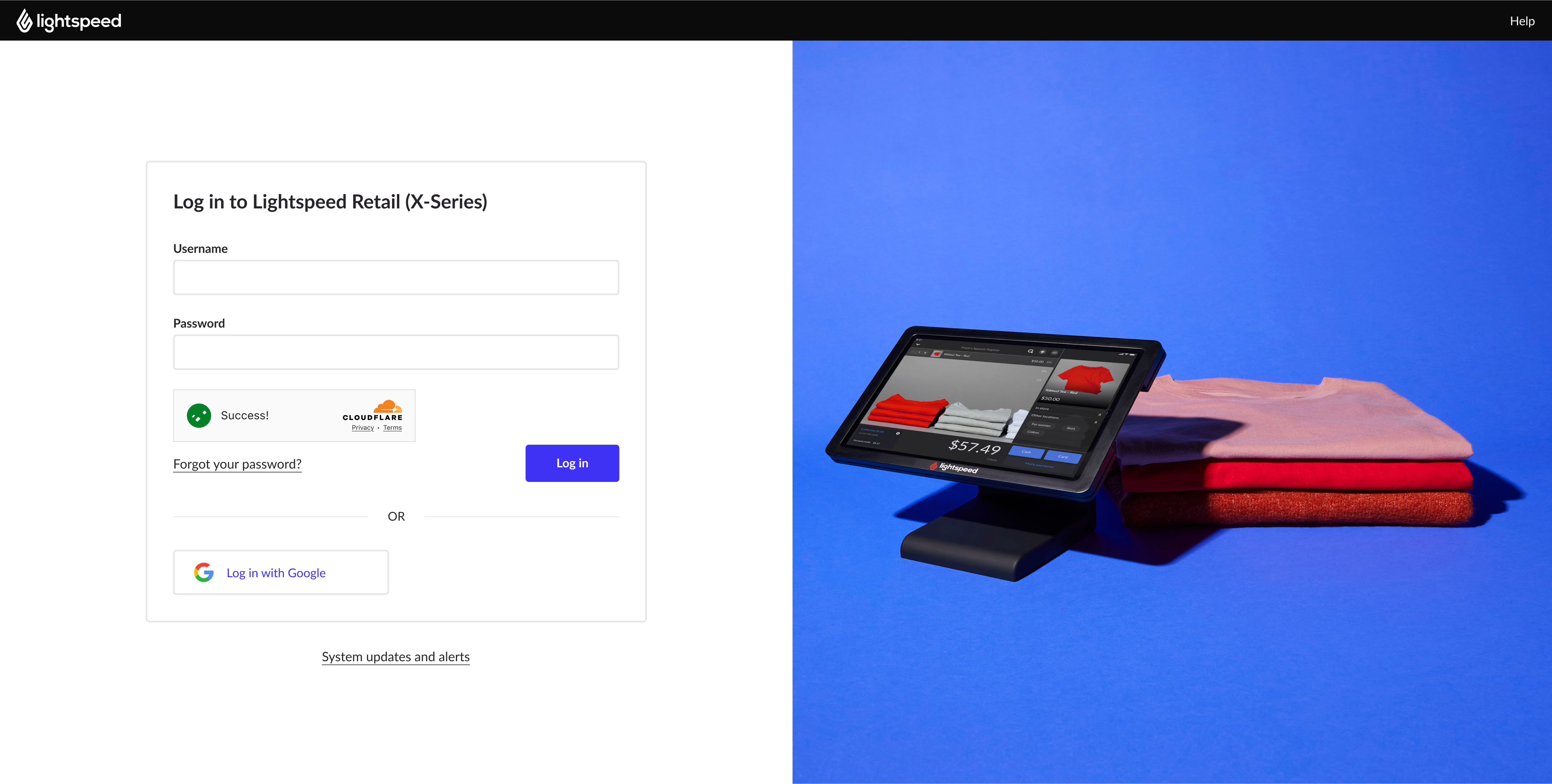
Authorize(navigates to X series login screen)
- Login using Retail account credentials
- Allow access to your Lightspeed Retail account
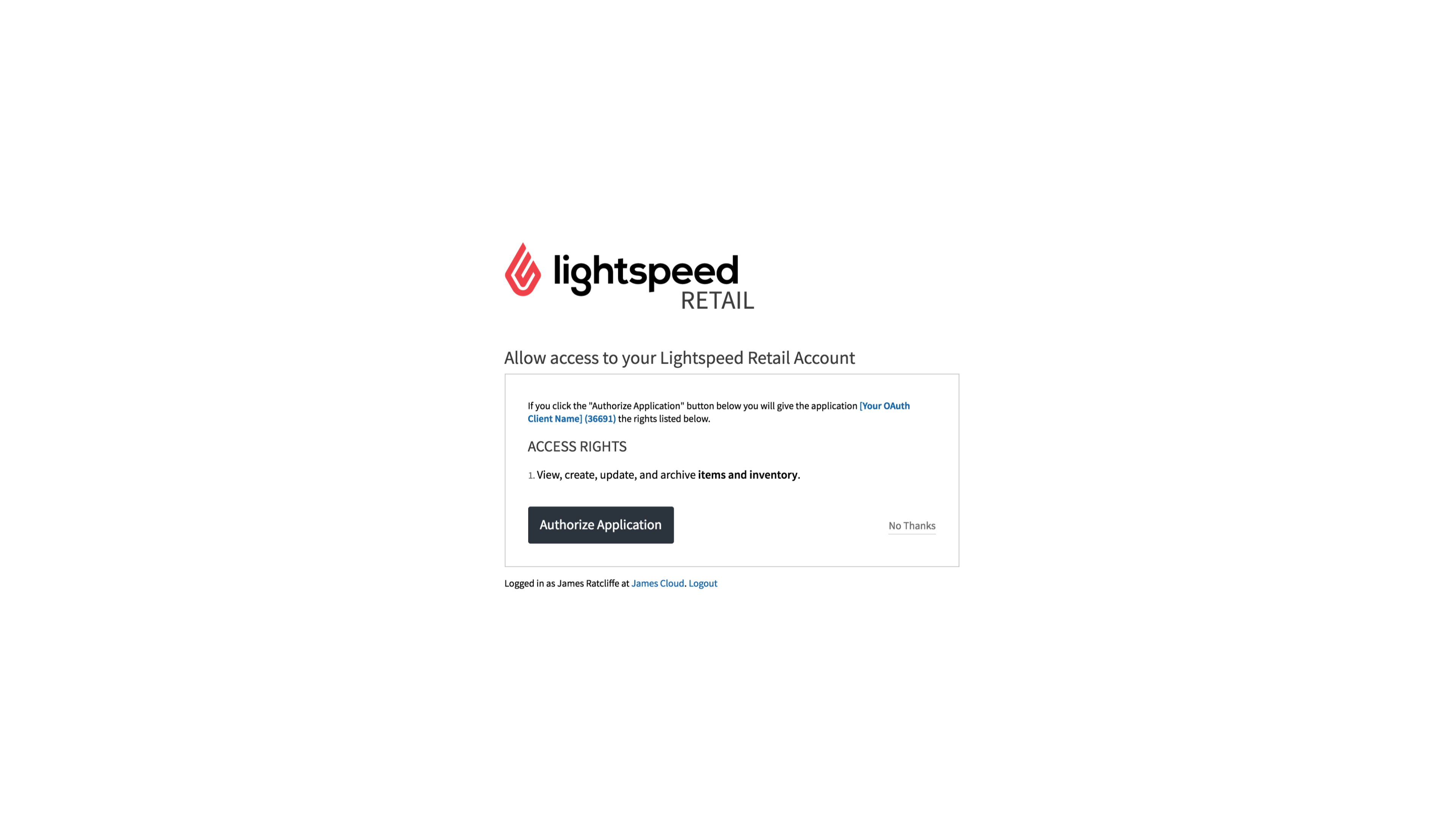
- Successful authorization will show a confirmation
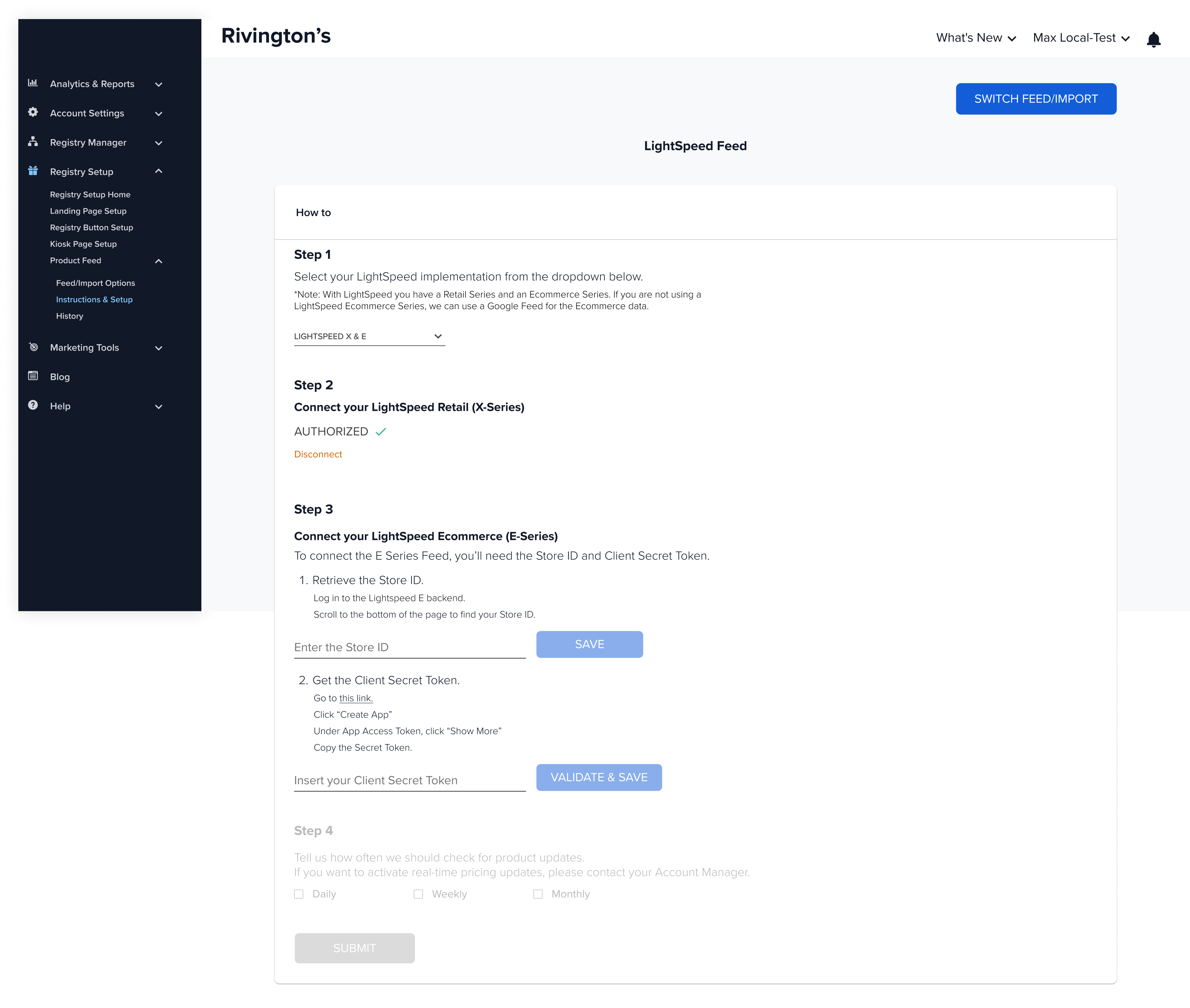
Step 3: Connect your Lightspeed eCom (E Series)
Retrieve theStore ID and Client Secret Token from Lightspeed E Series backend
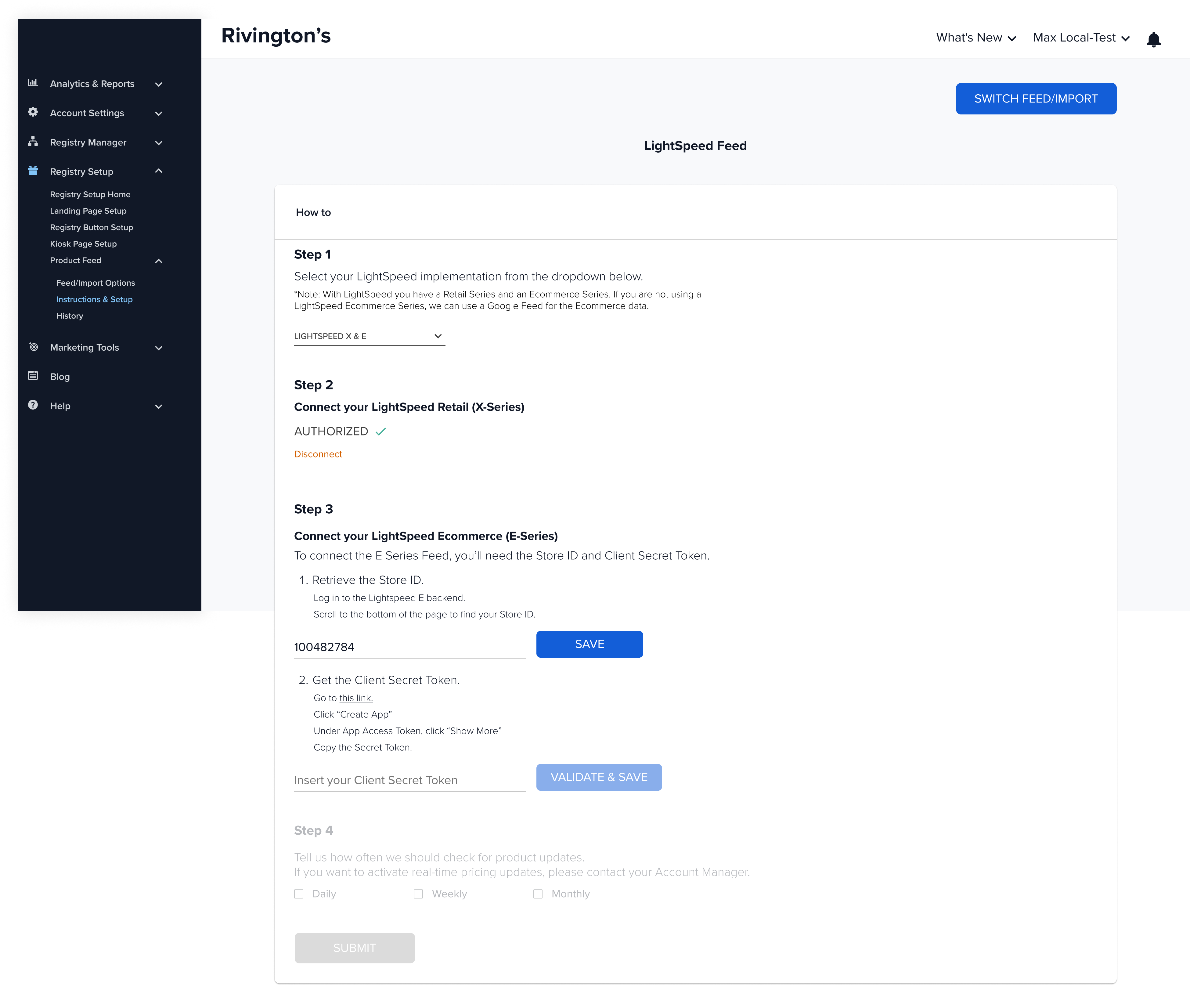
1. Retrieve Store ID
-
Go to Lightspeed E Series backened
-
On the home page, scroll to bottom of the page
-
Copy your
Store ID
Add and Save the Store ID in the Partner Dashboard
2. Get a Secret token
- Open the link using your !!STOREID!!: - [https://my.business.shop/store/!!STOREID!!#develop-apps
- Click
Create App - Approve default access scopes:
| Access scope | Notes |
|---|---|
| read_store_profile | Get store settings with REST API. Receive webhooks about changes in store settings or applications. |
| read_catalog | Get data about categories, products, product options, variations, and types with REST API. Receive webhooks about product and category changes. |
| update_catalog | Update product and category details, upload images and files to products, and delete products or categories with REST API. |
| create_catalog | Create new products and categories with REST API. |
| read_orders | Get data about orders placed in the store and abandoned carts with REST API. Receive webhooks about changes in carts and orders. |
| update_orders | Update order details, change order status, cancel and delete orders, and convert carts to orders with REST API. |
- Click
Show Secret Token→ Copy
Validate and Save Client Secret Token in the Partner Dashboard
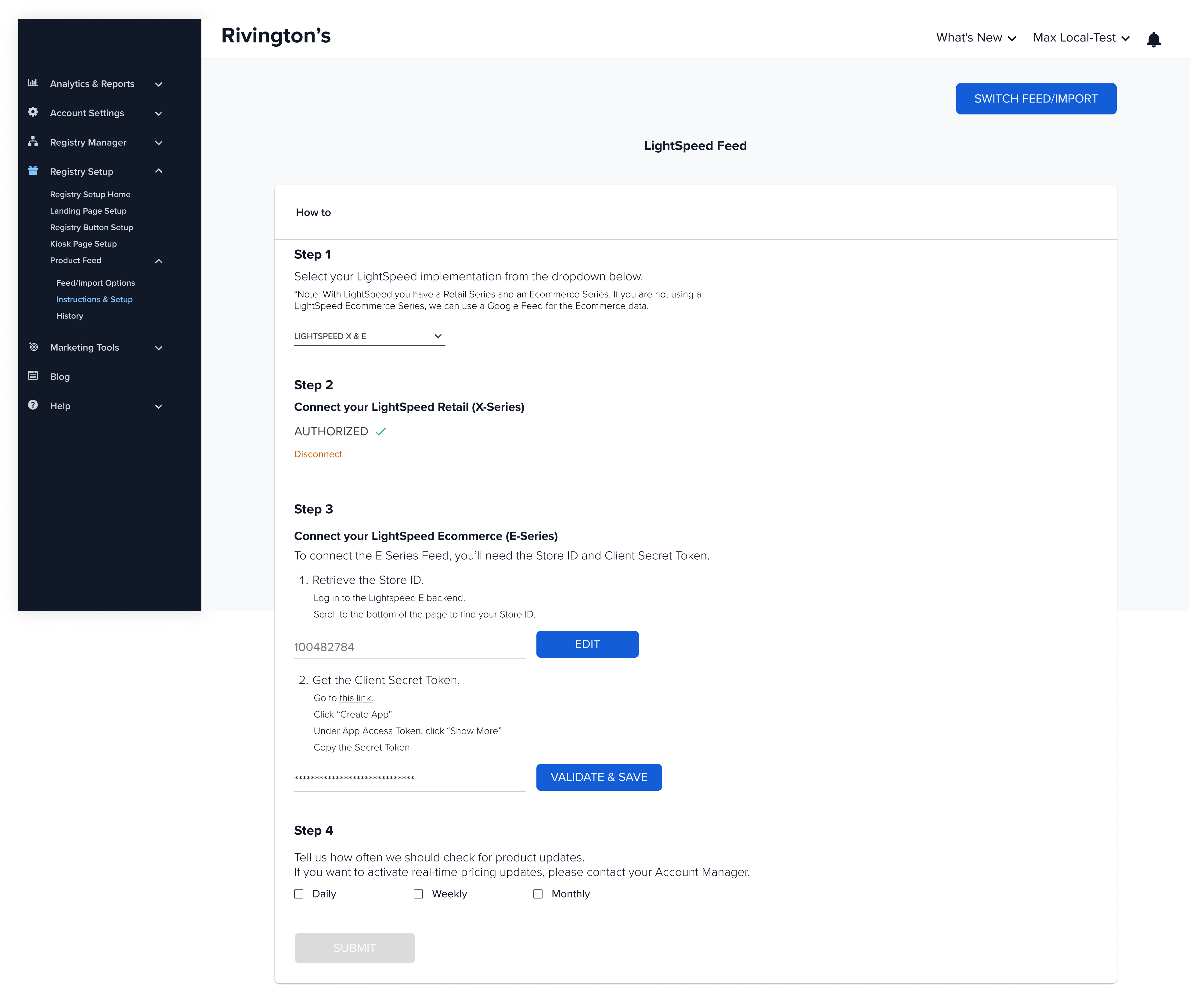
Step 4: Select the frequency for product updates
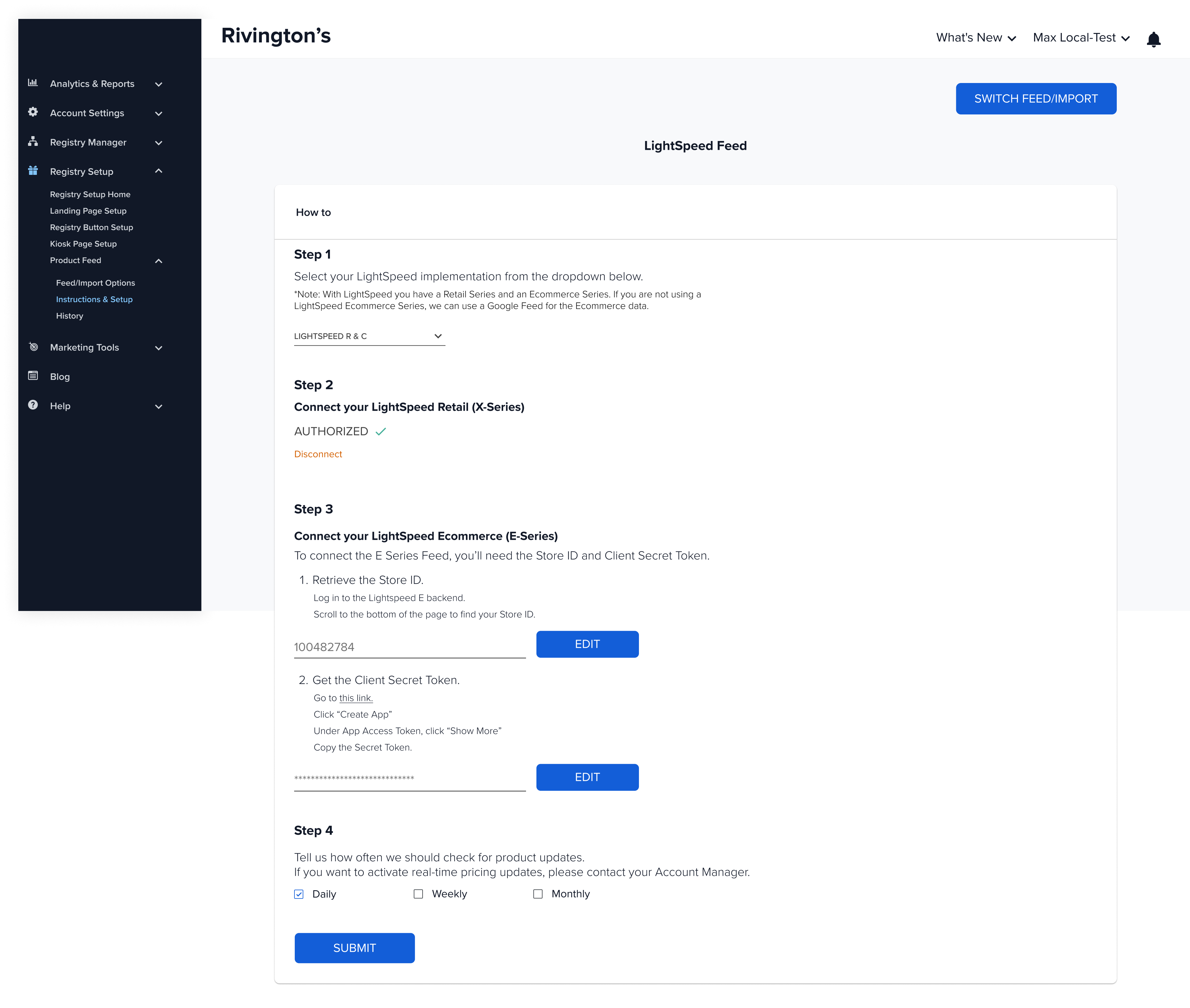
Step 5: Submit 🎉
For partners who are on other e-Com services, Google format feed is required to connect e-Com feed
2. Connect Lightspeed X & Google feed
Pull POS from X and use Google Feed for eCom catalog
Step 1: Select Lightspeed X & E from drop down
Step 2: Connect your Lightspeed Retail (X Series)
Authorize X Series Store
- Click
Authorize(navigates to X series login screen)
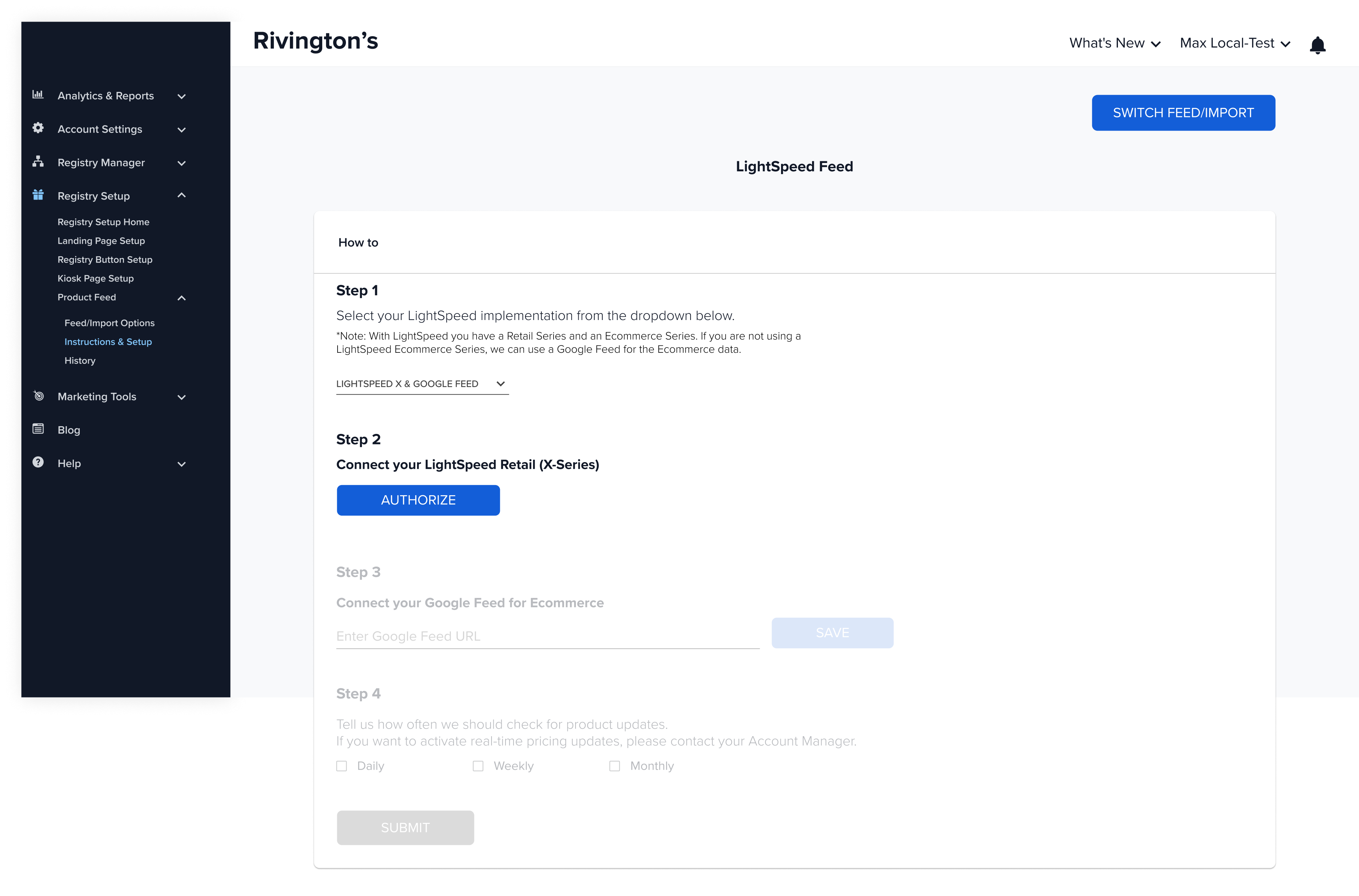
- Login using reatil account credentials
- Allow access to your Lightspeed Retail account
- Successful authorization will show a confirmation
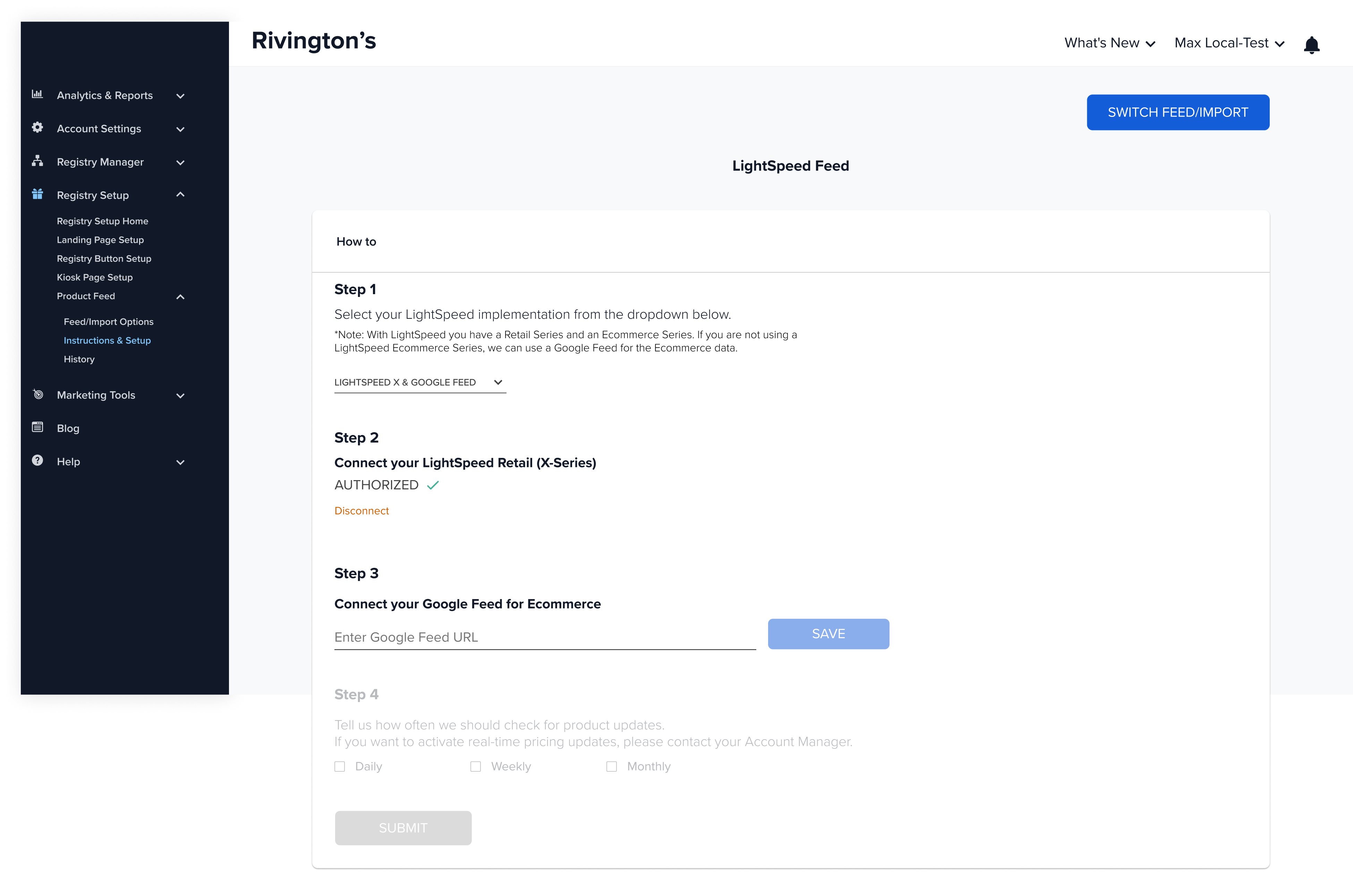
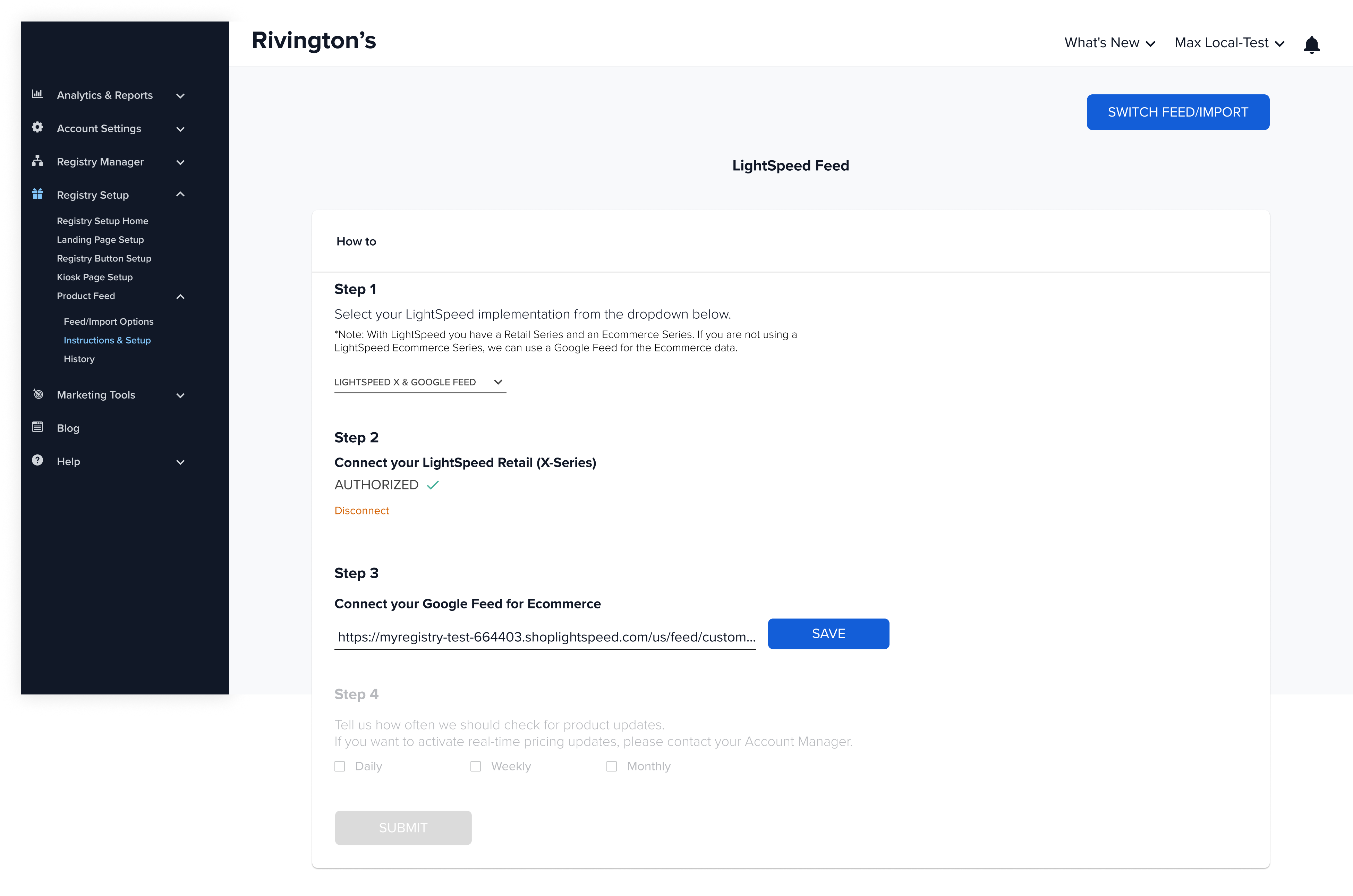
Step 3: Connect your Google Feed for Ecommerce
❗Ensure that SKU data is placed under "ID" column, Incorrect mapping may cause feed errors
- Paste the Google feed url and click Save
Step 4: Select the frequency for product updates
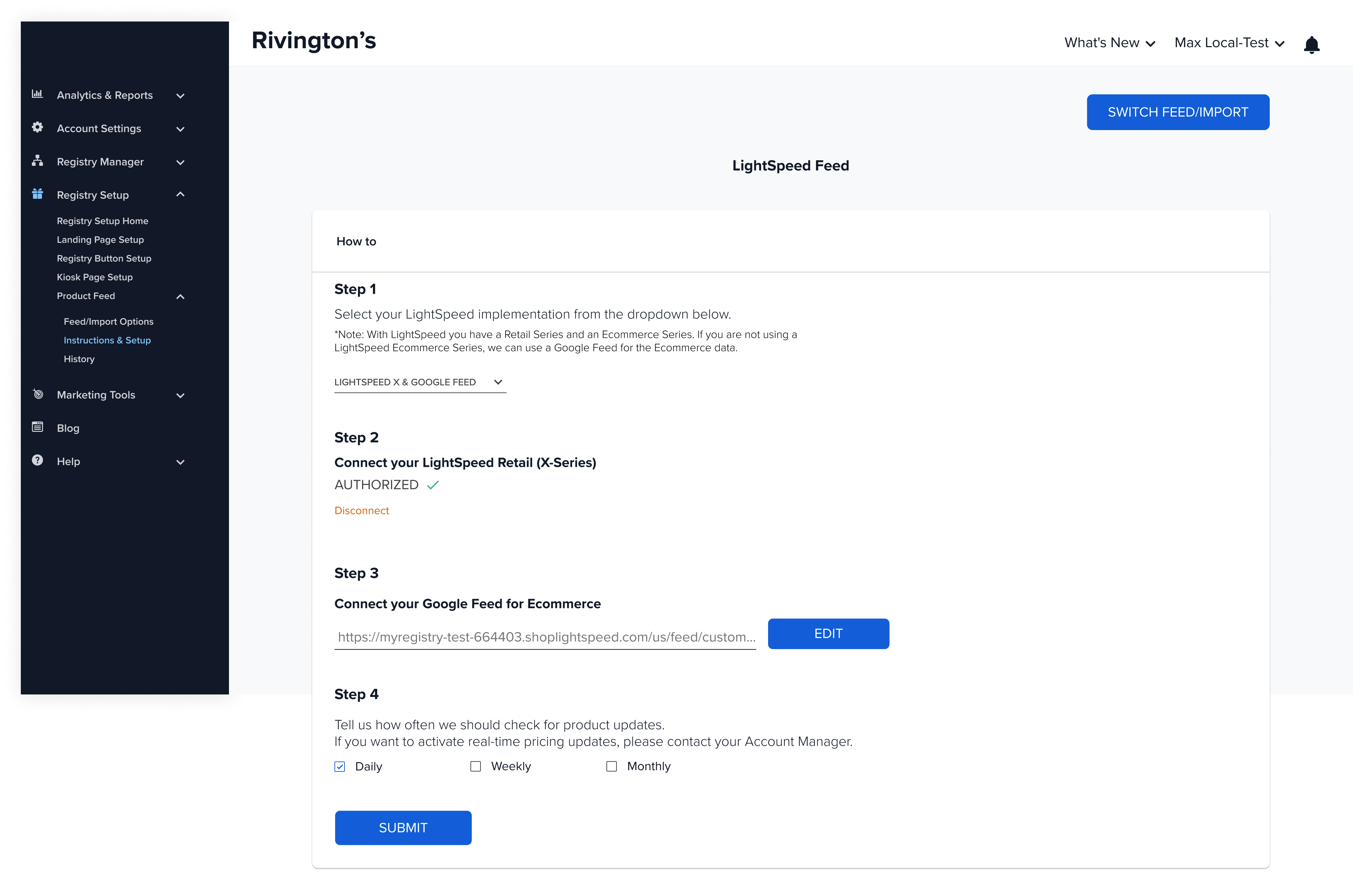
Step 5: Submit 🎉
Updated about 1 year ago
What’s Next
Need Support?
If you're unsure or need assistance with your integration, contact our team:
Email: [email protected]
We’re here to help get your registry features live and working smoothly!